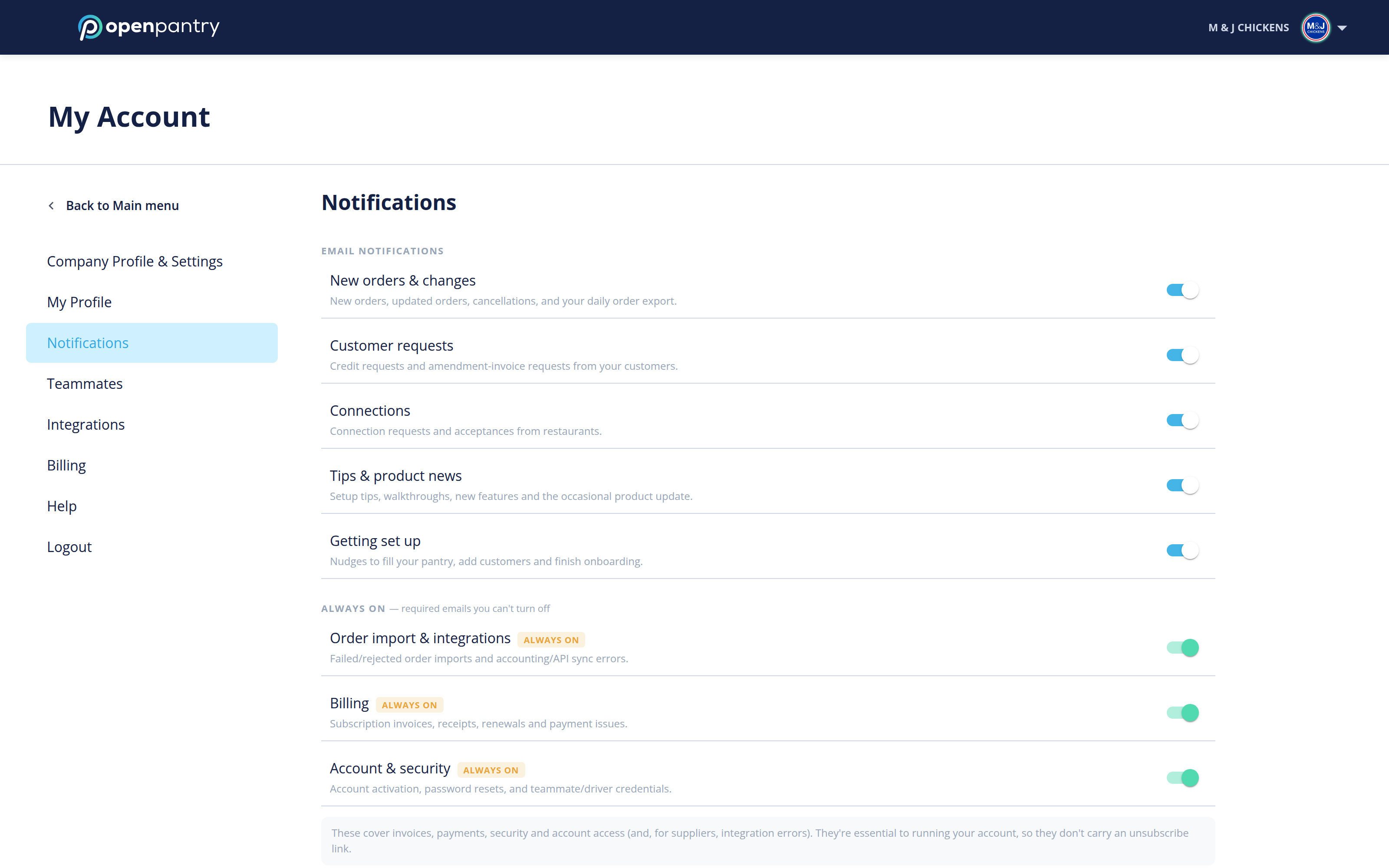
Back
Email Notifications
How do I change my email notifications?
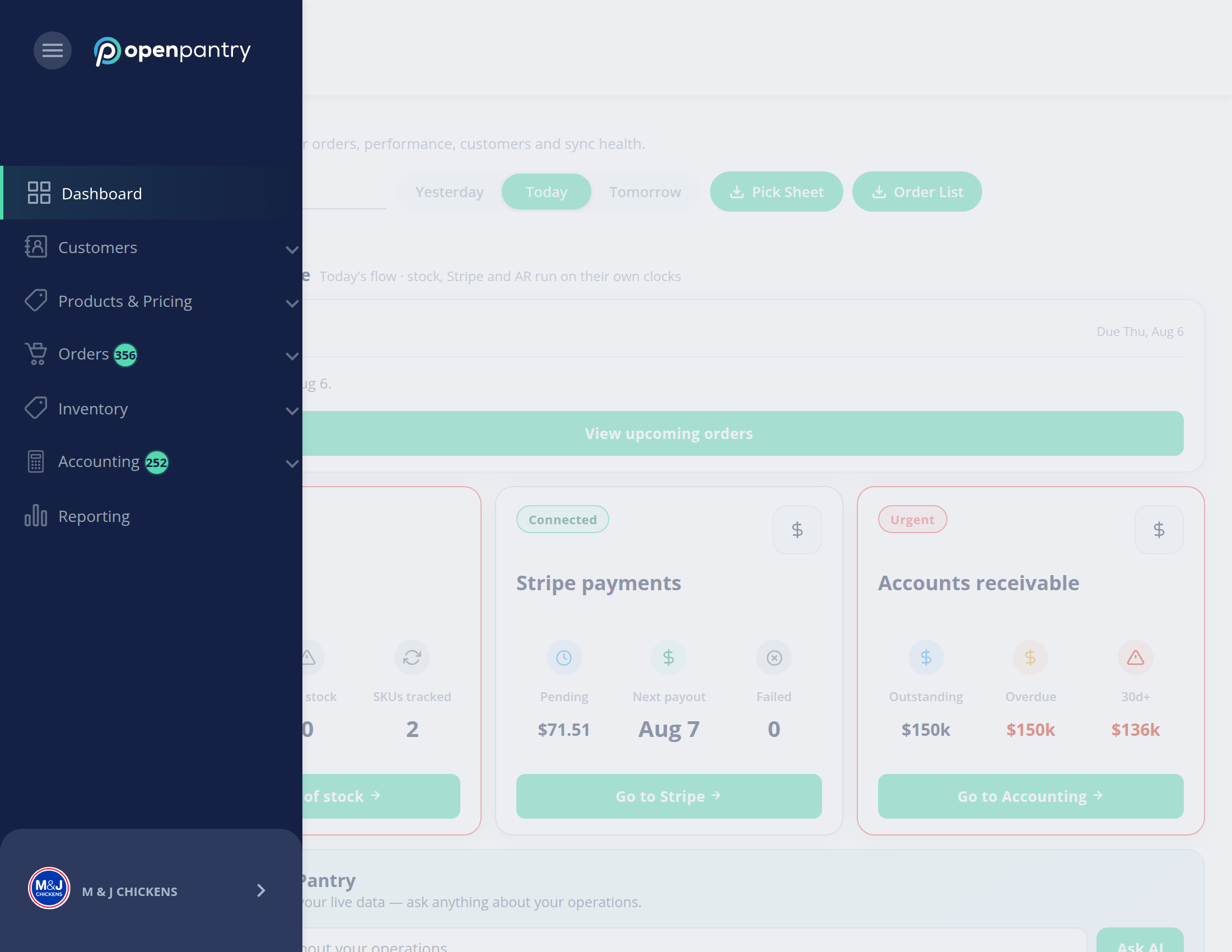
Your account settings live in the same place either way, but how you get there depends on how wide your browser window is:
- Wide window: click your company name in the top right, then choose the setting you want.
- Narrow window: the left menu collapses to icons — click the ☰ button in the top left, then your company name at the bottom of the menu.
- Open Notifications. Your email settings are under the Email notifications heading.
- Use the toggle beside each one to choose what you are emailed about. Blue is on, grey is off.
What the settings cover:
- New orders & changes — new orders, and updates to existing ones.
- Connection requests — when a customer asks to connect with you. Worth leaving on.
- Transactional emails — day-to-day changes such as back orders and substitutions.
- Promotional emails — news and offers from Open Pantry.