

Back
How to check off your orders and increase stock
Checking off an order confirms what actually turned up. It adds the goods to your inventory, and it is also how you raise a credit request when something is missing or wrong.
Select the ☰ menu button in the top left of the screen, then Orders & Invoices.

Checking off an order
- Select the order to open it.
- Select Check Off.
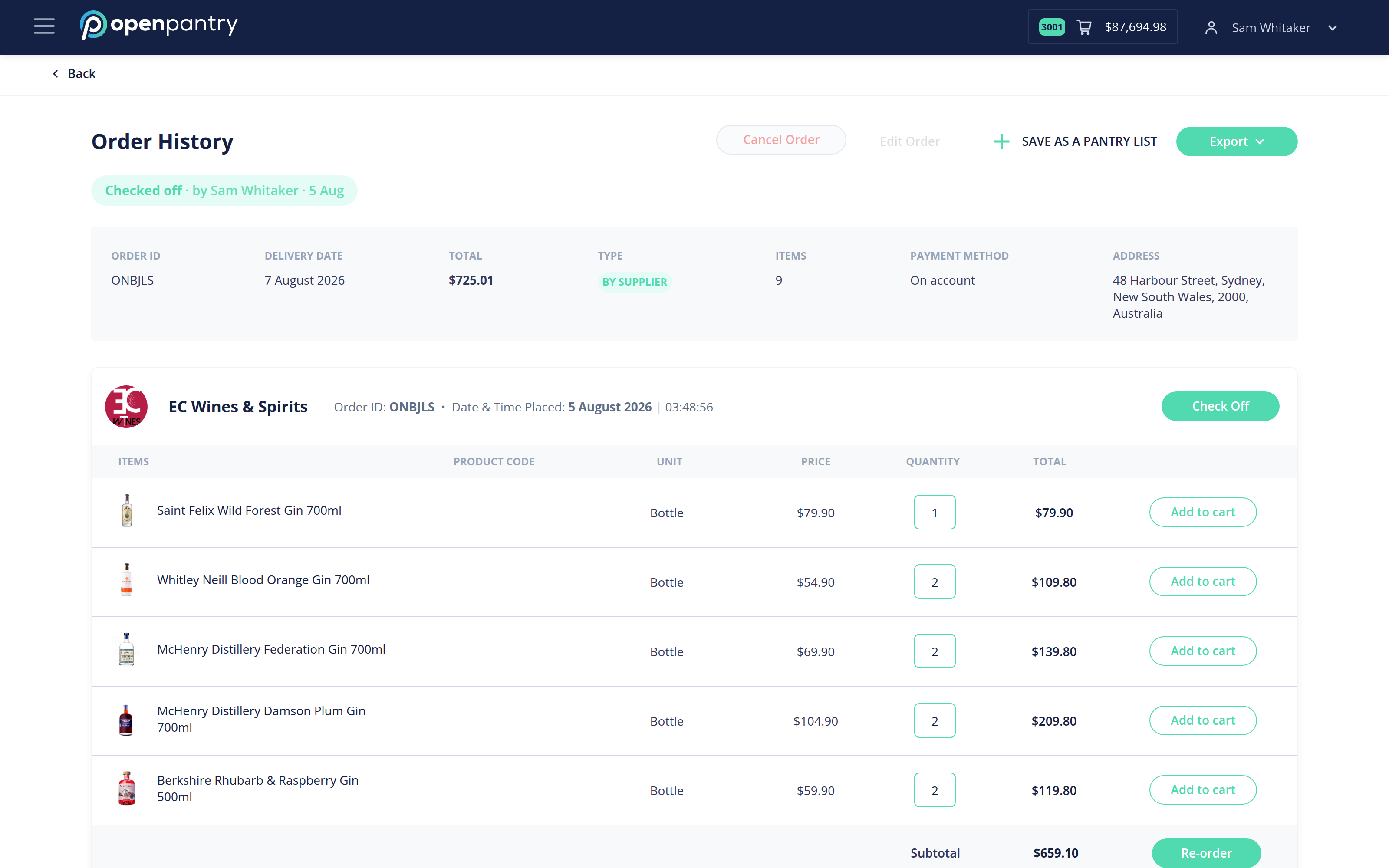
- Go line by line: ✓ if it arrived as ordered, ✗ if it did not.
- Adjust the quantity on any line where a different amount arrived.
- Save when you have been through the order.
Anything you mark short or wrong becomes a credit request to that supplier, which you can follow under the Credits tab.
Automatic check off
If you would rather not check every order by hand, set a schedule on the Orders & Invoices screen and orders are checked off as delivered. Set the schedule to Off to go back to confirming them yourself.
Automatic check off assumes everything arrived as ordered, so it will not raise credit requests for you.