

Back
How to do regular stocktaking
Select the ☰ menu button in the top left of the screen, then Restaurant Pro Suite.
- Select Inventory.
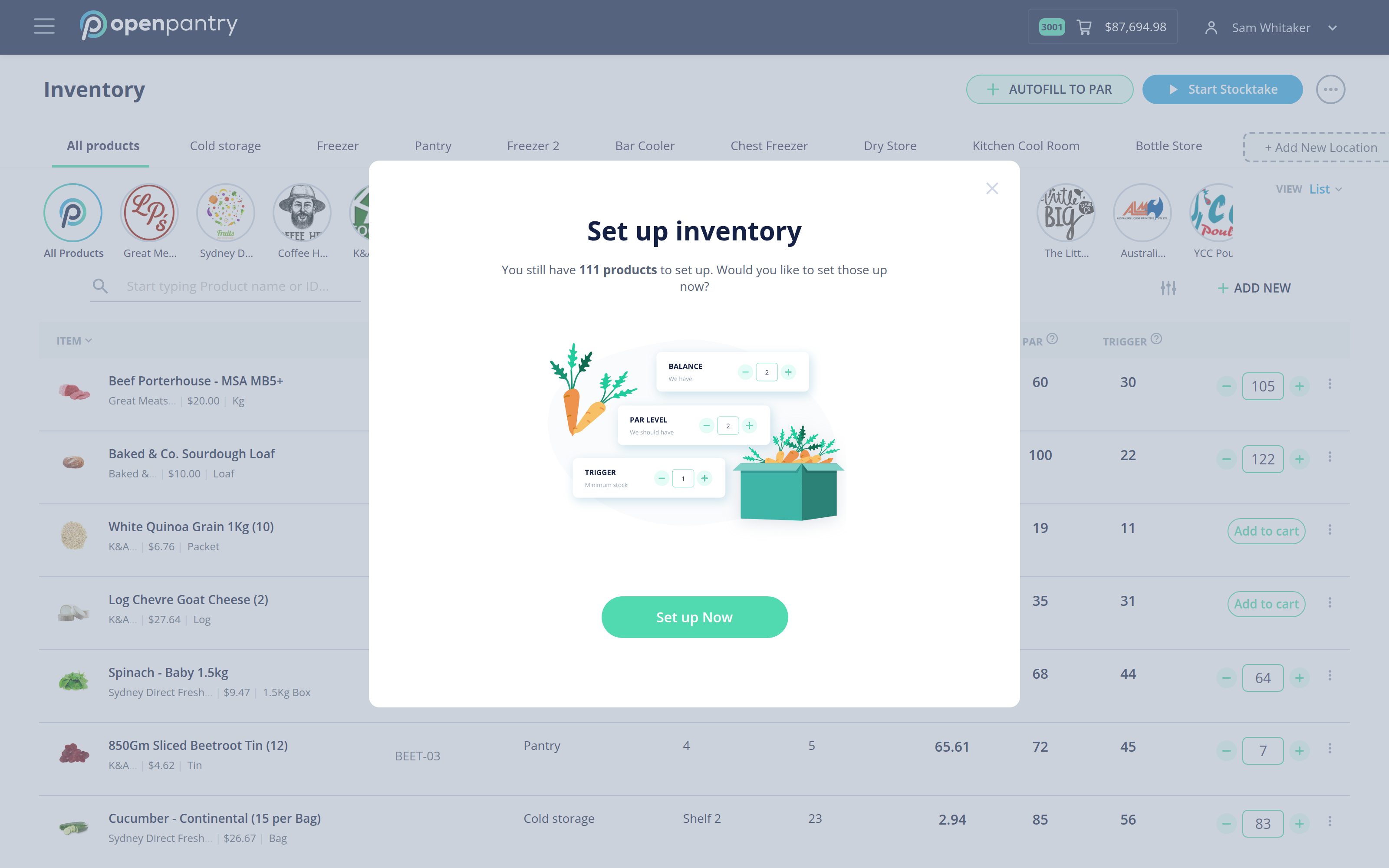
- Select Start Stocktake in the top right.
- Choose Regular Stocktake. (The other option scans barcodes — see How to do stocktaking using barcodes.)
- Enter what you have counted in the Closing Stock column. Work through one location tab at a time if your stock is spread across several rooms.
- Select Save & Combine as you go, so a long count is not lost.
- Select End Stocktake when you are done. The stocktake report is exported straight away.
Ending a stocktake sets stock on hand to what you counted, so only end it once the count is complete.