

Back
How to do stocktaking using barcodes
Select the ☰ menu button in the top left of the screen, then Restaurant Pro Suite.
- Select Inventory.
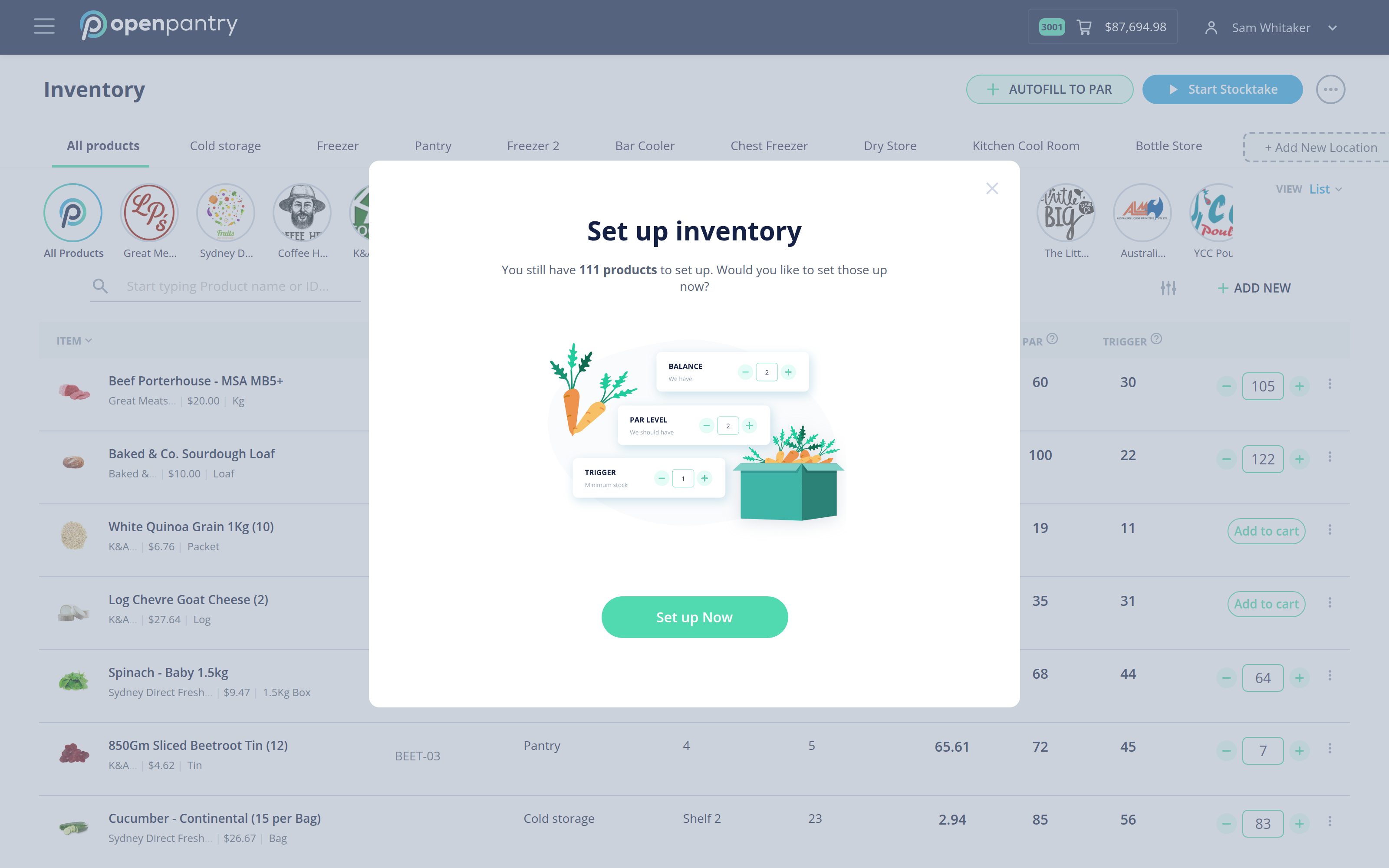
- Select Start Stocktake, then Scan Barcode, then Continue.
- Select Next and start scanning. Scanning the same barcode again adds to the count rather than replacing it, so you can scan a case at a time.
- Select Complete Stocktake when you are done. The stock report is exported straight away.
To get at earlier counts, use the three-dot menu in the top right of the Inventory screen — it offers Stocktake History and Export current stock report.
A product has to have a barcode recorded against it before it can be scanned. Anything without one still has to be counted by hand.