

Back
How to export your orders
Orders are emailed to you as purchase orders by default. To export a batch instead — as picking slips, invoices or PDFs — use the Export control on the Orders screen.
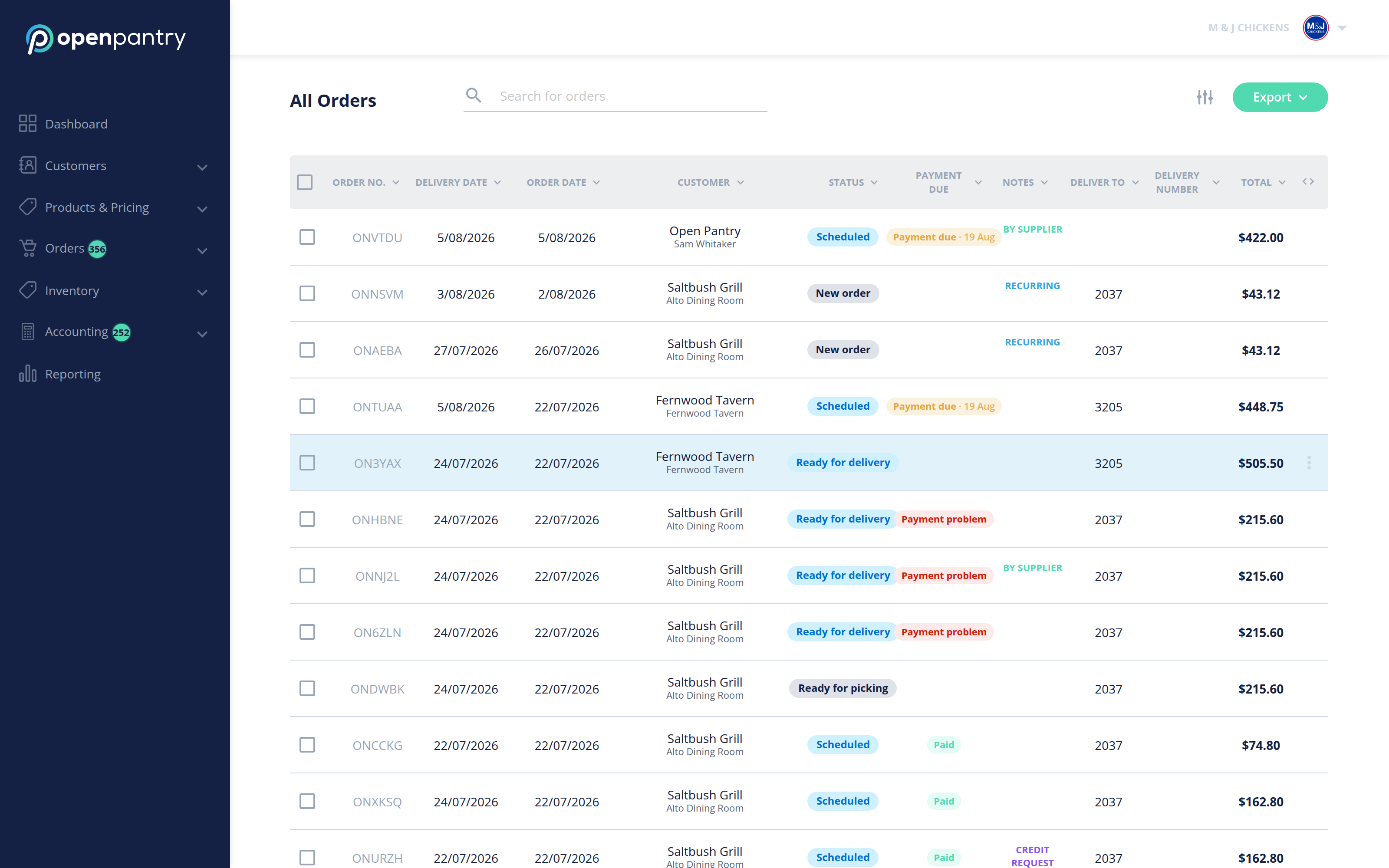
- Select Orders in the menu, then the tab you want to export from, for example All Orders or Next Deliveries.
- To export only some orders, tick the checkbox at the left of each order line first.
- Select Export in the top right.
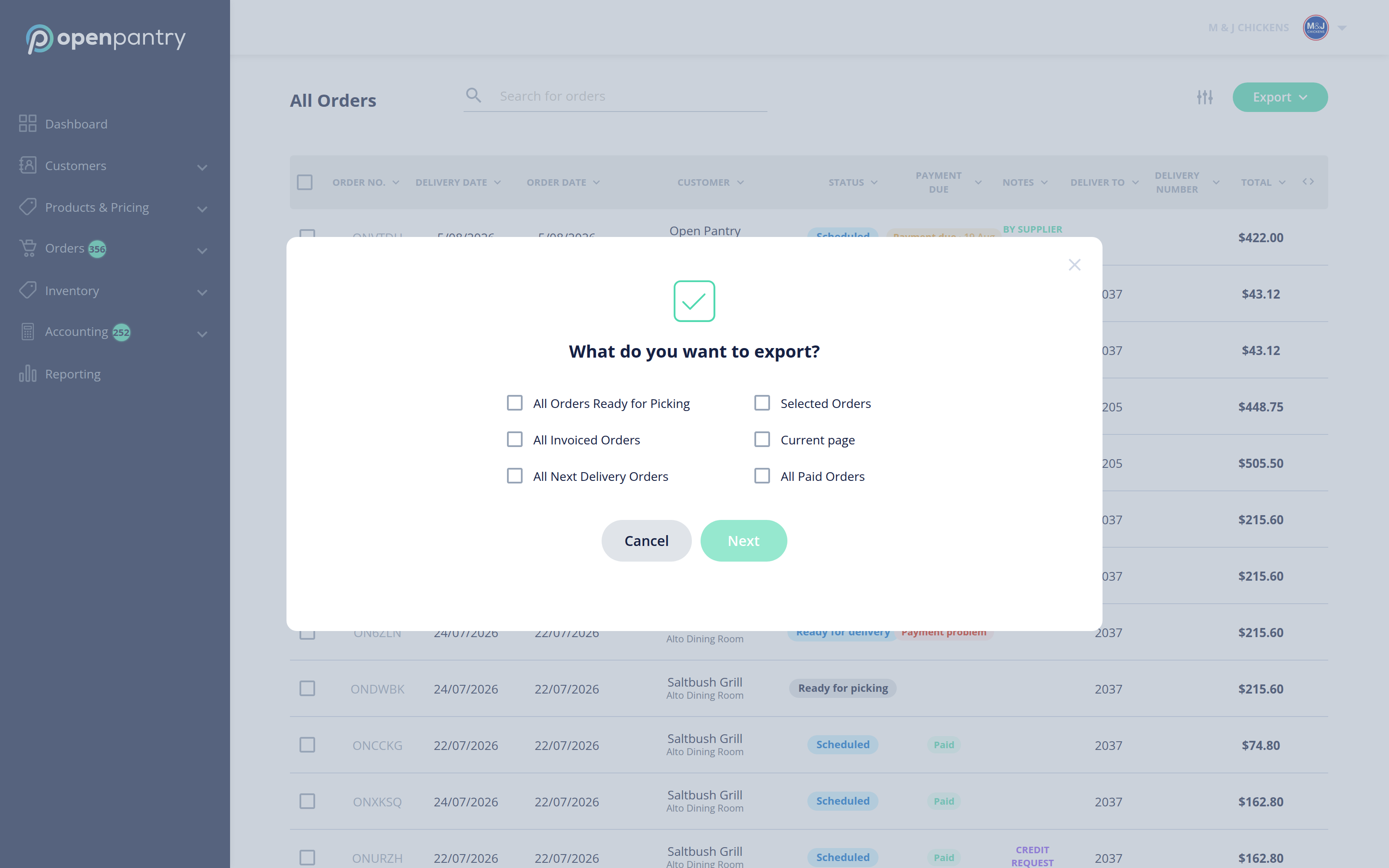
- Choose what you want to export, then Next.
- Choose what should happen to the orders you are exporting.
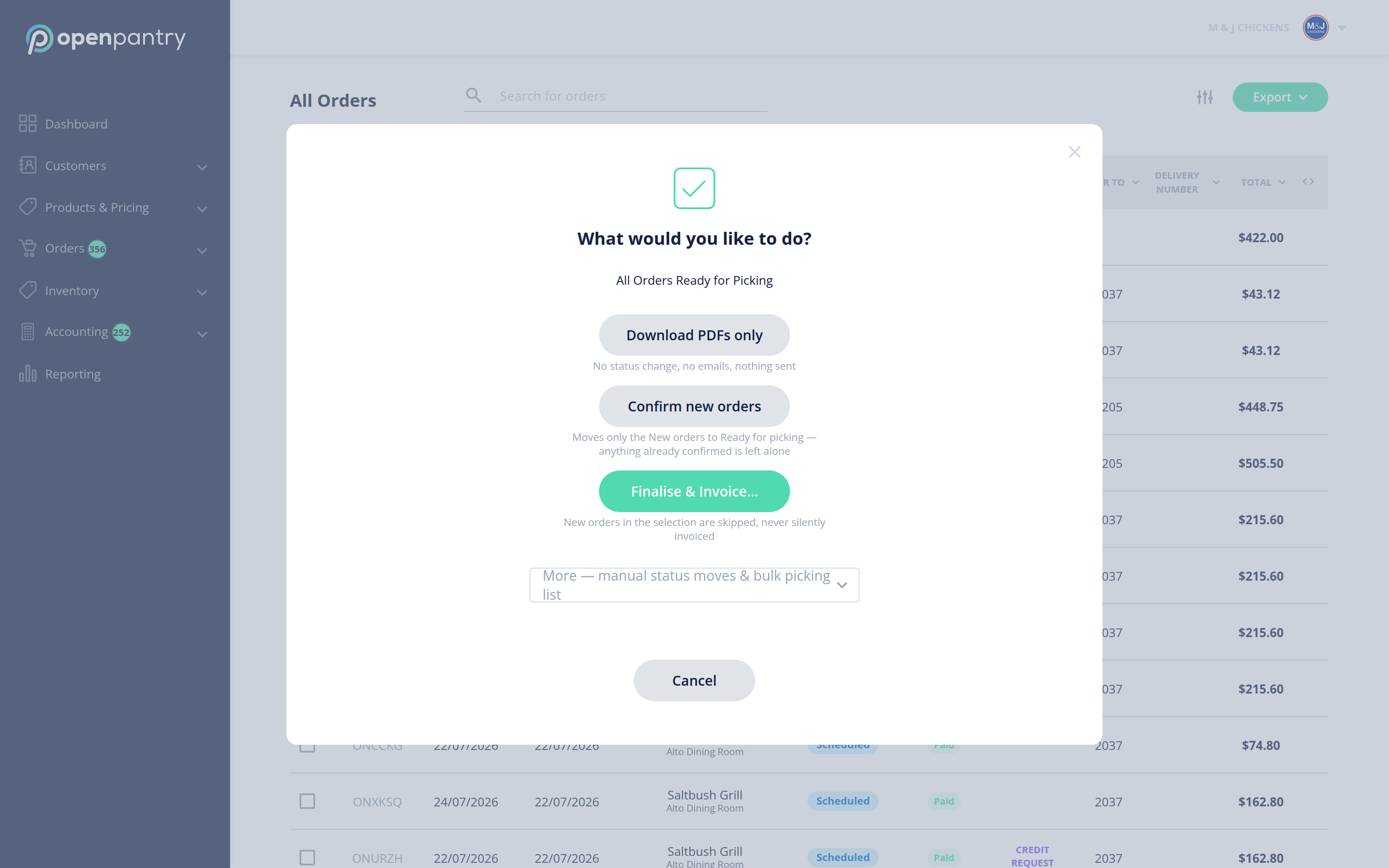
- Download PDFs only — nothing changes. No status move, no emails, nothing sent.
- Confirm new orders — moves only the New orders in your selection to Ready for picking. Anything already confirmed is left alone.
- Finalise & Invoice — invoices the orders in the selection. New orders in the selection are skipped rather than silently invoiced.
- More — manual status moves and the bulk picking list.
Exporting a bulk picking list or picking slip marks those orders as Ready for Picking. Exporting an invoice moves them to Invoiced.