

Back
How to process orders
Select Orders in the menu. It opens onto the tabs that track your customers' orders through to delivery.
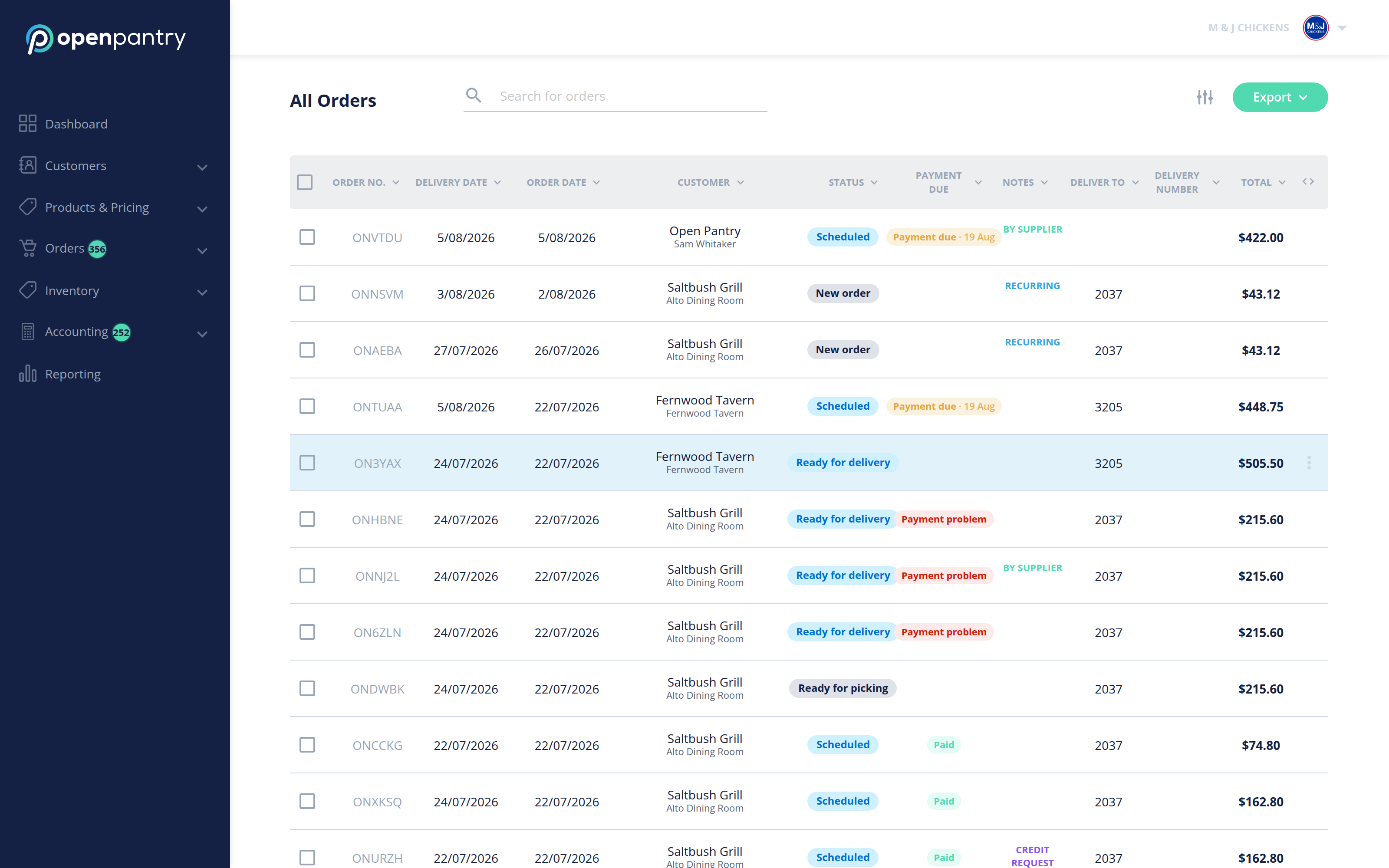
- All Orders — everything, whatever its status. Use the search box and the column filters to narrow it down.
- Next Deliveries — orders due on your next delivery day.
- Warehouse — the pick and pack floor (below).
- Imported Orders — orders that arrived by email and have been read into Open Pantry, waiting to be confirmed.
- Credits — credit requests, credit notes and refunds.
Select any order line to open it and see its contents, delivery details and status.
Picking and packing
Select Warehouse to open Pick & Pack. Rather than moving orders one at a time, orders are grouped into waves — a batch of orders picked together.
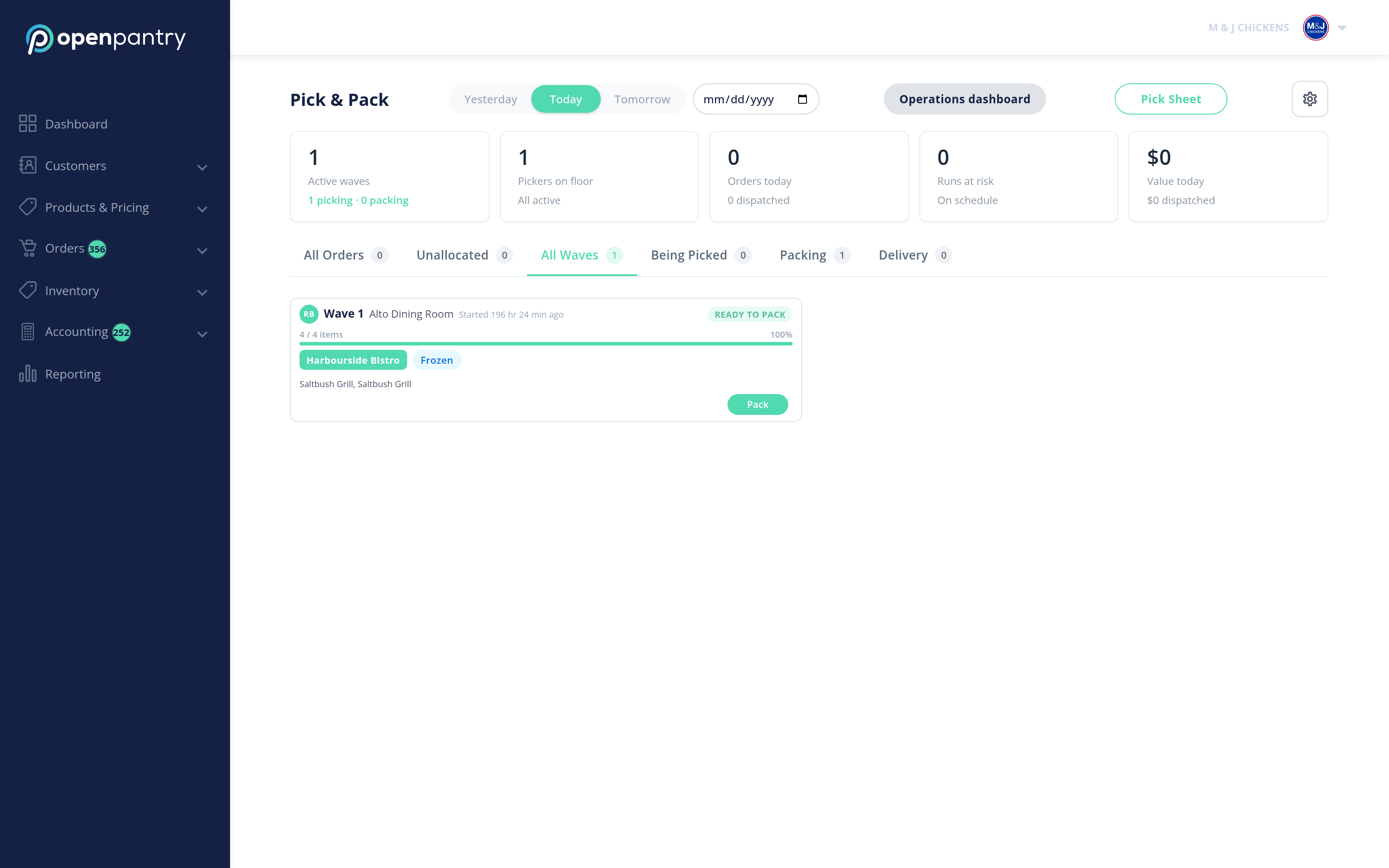
- The counters across the top show active waves, how many are picking versus packing, pickers on the floor, and orders due today.
- The tabs — All Orders, Unallocated, All Waves, Being Picked, Packing, Delivery — show where each order has got to.
- Pick Sheet prints what the floor needs.
- Operations dashboard gives the wider view across the day.
Note: this replaces the older Next Delivery → Picking → Packing sequence, where each order was confirmed "Ready for Picking" individually.