

Back
How to set up Automatic Ordering
Automatic ordering works out what to reorder by comparing what you have sold against your PAR levels, and fills a cart with the difference.
Select the ☰ menu button in the top left of the screen, then Restaurant Pro Suite.
- Select Automated Ordering.
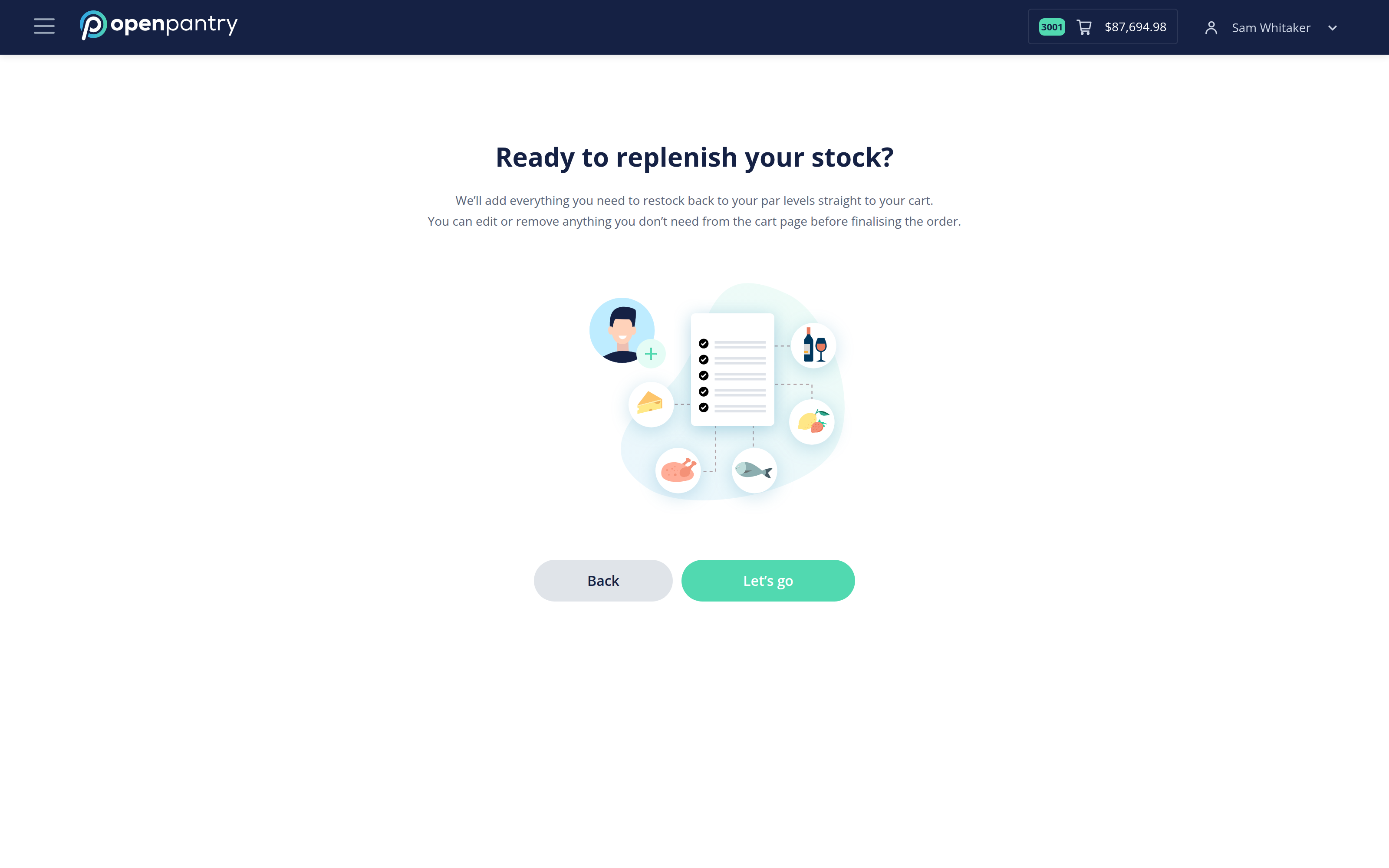
- Select Let's go to start.
- Provide your sales for the period — connect your point of sale system, upload a menu items spreadsheet, or enter quantities sold by hand.
- Add any wastage that would not show up in sales — a dropped tray, a broken carton — so stock is not overstated.
- Save and continue. Open Pantry works out what has fallen below PAR and proposes the quantities to bring you back up.
- Review the proposal, adjust anything you disagree with, and add it to your cart.
Nothing is ordered without you placing it. The last step fills your cart; you still check out.
This depends on inventory being set up first — see How to set up inventory.