

Back
How to set up inventory
Once your menu items are in, setting up inventory lets Open Pantry track stock for you: it goes up as you receive orders and down as you sell menu items.
Select the ☰ menu button in the top left of the screen, then Restaurant Pro Suite.
- Select Inventory.
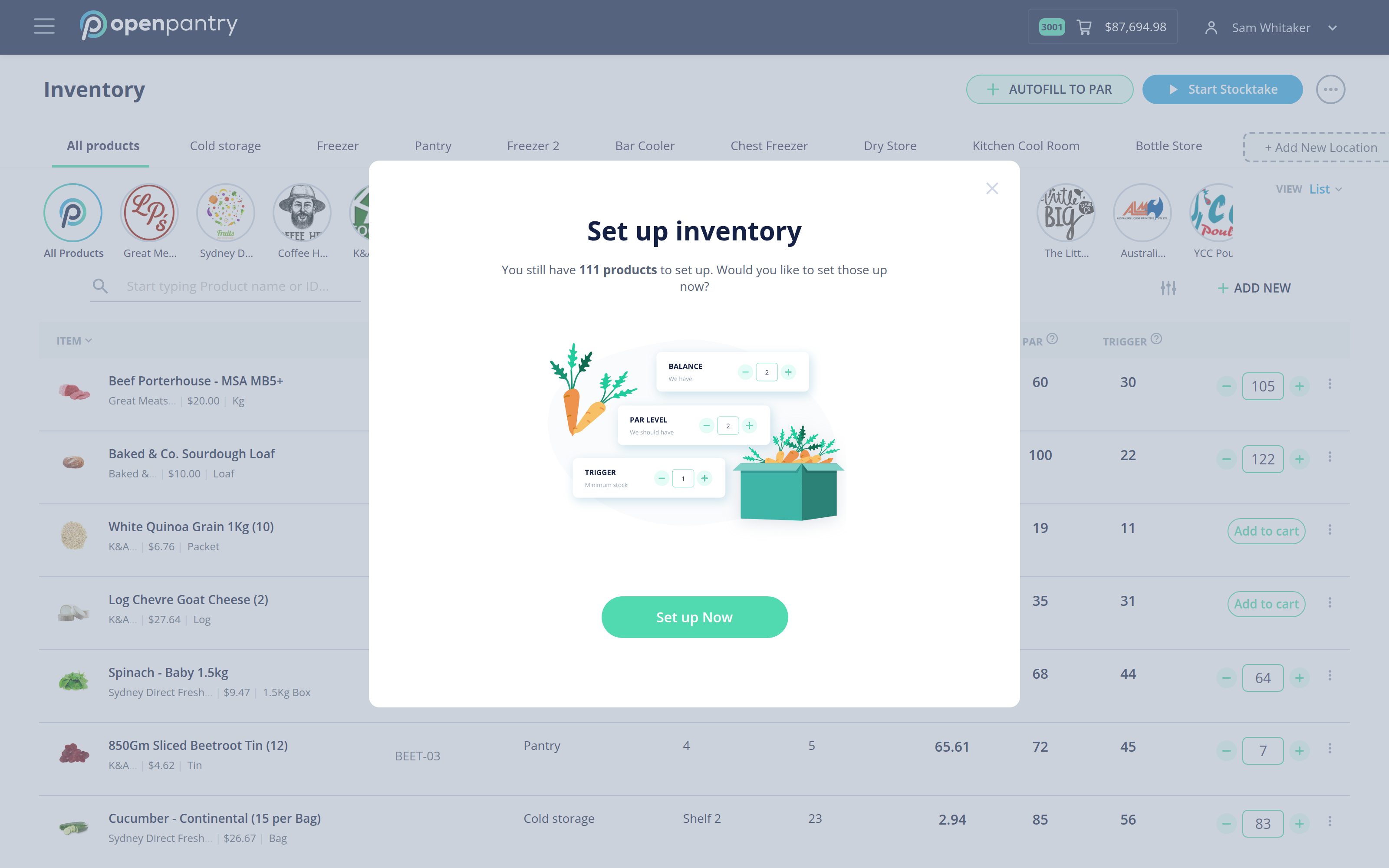
- Do an initial stock count and enter what you have in the Balance field for each ingredient. That sets your starting position.
- Set a PAR level for each product — the quantity you want to have on hand.
- Set a Trigger — the level at which you want to be told to reorder.
- Save.
Use the location tabs across the top — Cold storage, Freezer, Pantry, Bar Cooler and so on — to record where each product is kept, and + Add New Location to add one of your own. Getting locations right makes stocktakes much faster, because you can count one room at a time.
AUTOFILL TO PAR fills the count column with each product's PAR level, which is a quick starting point when you are setting up.