


Imported Orders: turning emailed and PDF orders into digital orders
Quick answer: Imported Orders reads emailed and PDF or spreadsheet orders and turns them into digital orders automatically, with an auto-process threshold and auto-assign.
Many customers still send orders by email or as a PDF or spreadsheet attachment. Imported Orders reads those for you and turns them into proper digital orders — no re-typing. You'll find it at /imported-orders/pending.
How do I forward orders to my inbound email address?
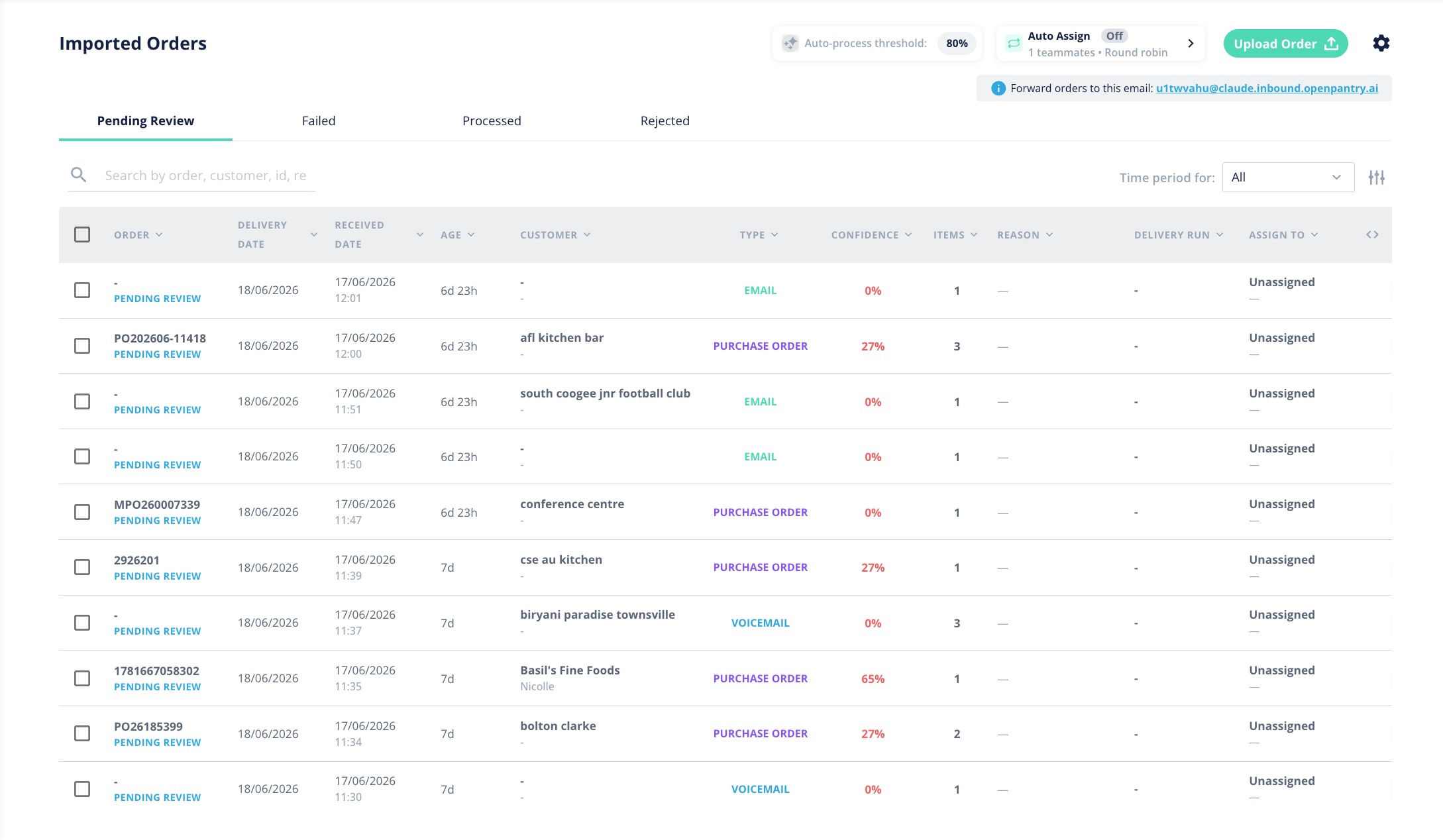
- On the Imported Orders page you'll see your unique inbound email address (it ends in @orders.theopenpantry.com), shown as "Forward orders to this email".
- Forward a customer's order email — or upload one with the Upload Order button — and Open Pantry automatically reads it and creates a draft order, matching the lines to your products.
Tip: give that inbound address to customers who email their orders, or set up an auto-forward rule so their orders flow in by themselves.
What do the columns mean?
Each imported order is shown with helpful detail so you can review it quickly:
- Order, Customer, Type — what came in and who from.
- Delivery Date, Received Date, Age — when it's needed, when it arrived, and how long it's been waiting.
- Confidence — how sure Open Pantry is that it read the order correctly.
- Items — how many lines were detected.
- Reason — why an order needs review or failed, when applicable.
- Delivery Run and Assign To — where it'll go and who's handling it.
What do the tabs do?
- Pending Review — orders waiting for you to check and confirm.
- Failed — orders that couldn't be read or matched.
- Processed — orders that have been converted into real orders.
- Rejected — orders you chose not to import.
What are the Auto-process threshold and Auto Assign settings?
The Auto-process threshold (for example, 80%) lets confidently-read orders go through automatically: anything at or above your chosen confidence is processed without manual review, while lower-confidence orders wait in Pending Review so you can check them. Set the threshold higher to review more orders, or lower to automate more.
Turn on Auto Assign to share incoming orders out to your team automatically, round-robin (each new order goes to the next teammate in turn). Turn it off to assign them yourself.

How do I review and convert an imported order?
- Open a Pending Review order and check the detected lines against the original — especially anything flagged in the Reason column.
- Fix any mismatches, then convert it into a real order. From there it follows the normal order flow into Pick & Pack.