


Credits: requesting and approving customer credits
Quick answer: Raise a credit against an order, track it from Requested to approved, and manage all your customer credits from the Credits screen.
A credit puts value back to a customer — for example when something was short-supplied, returned or incorrectly charged. Open Pantry lets you raise a credit, review it and approve it, with a clear record of each one.
How do I raise a credit?
- Open Credits and start a new credit, usually against the order it relates to so the right lines are pulled in.
- Choose the lines or amount to credit and submit it.
How do I review credits using the date columns and tab counts?
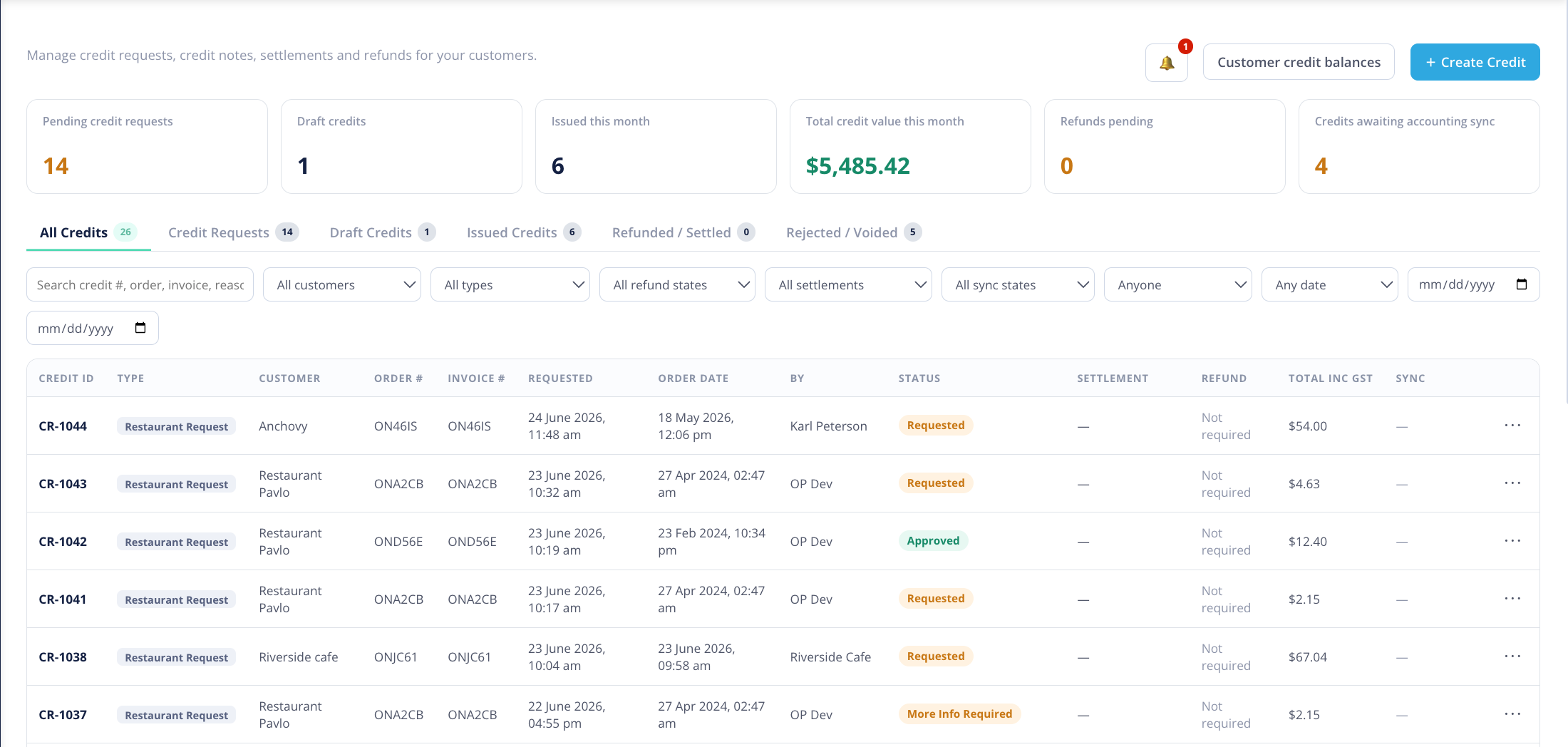
The Credits list shows a Requested date (when the credit was raised) and an Order date (the date of the order it relates to), so you can tell at a glance how recent each request is. The tab counts show how many credits are in each state, and the date-range presets let you quickly narrow the list to a period.
How do I approve a credit (and override the amount)?
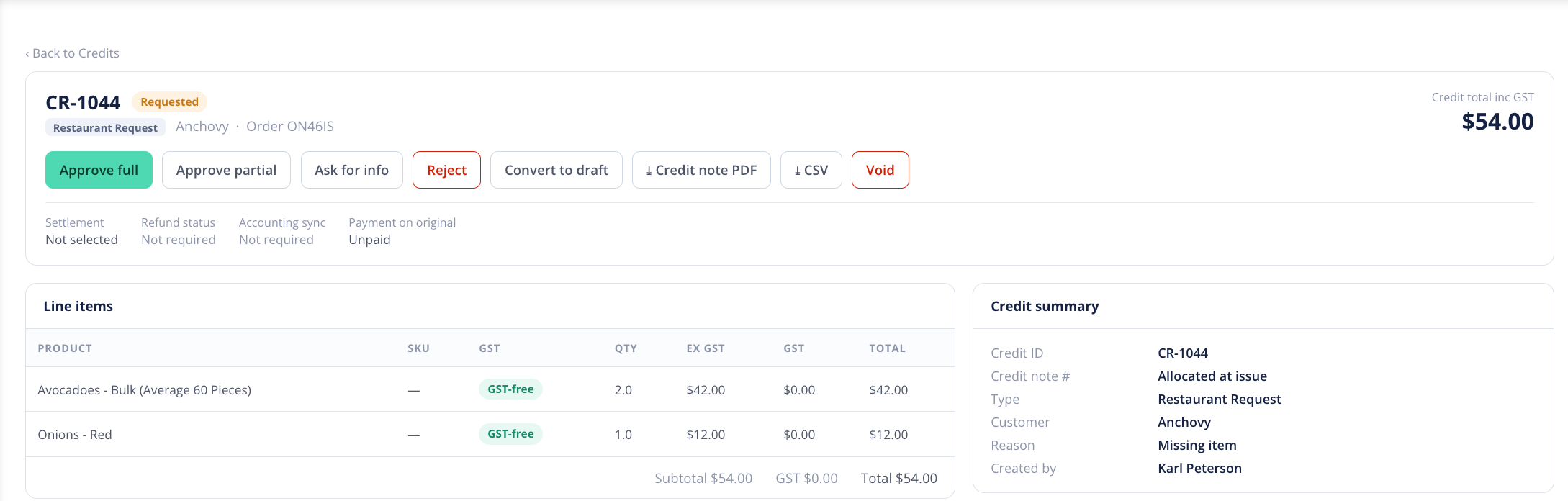
- Open the credit you want to action and review the detail.
- Approve it to put the credit through. If you only want to credit part of it, you can override the credit amount before approving — so the amount that goes through is exactly what you've agreed, not necessarily the full requested figure.
Note: credits feed into the customer's billing. If anything looks unusual, check the related order before approving.