


Delivery and delivery runs
Quick answer: Turn packed orders into delivery runs (a route of stops for one driver), reorder the stops, assign a driver and start navigation.
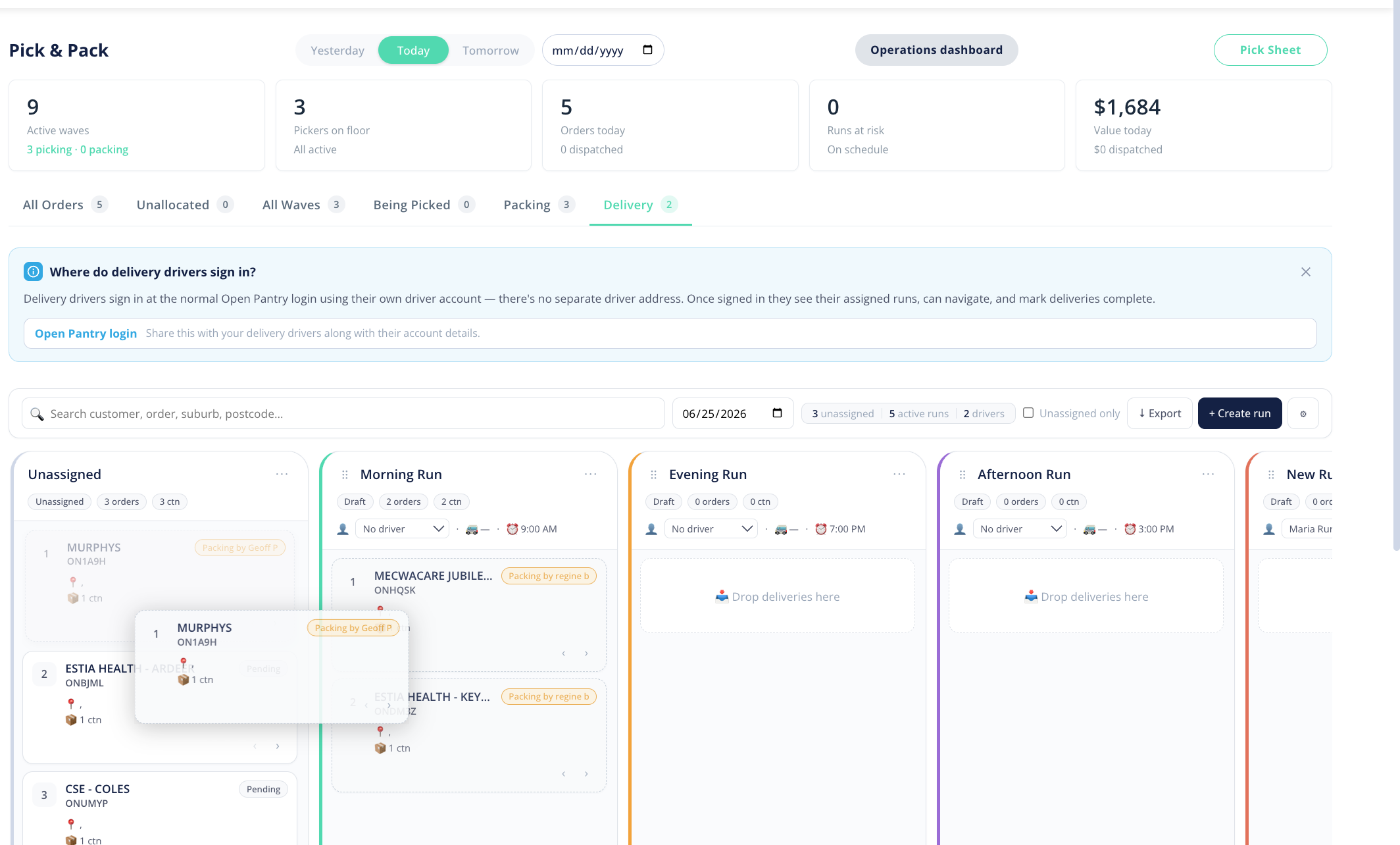
The Delivery screen is where packed orders become scheduled deliveries. You'll find it under Orders → Delivery (or at /orders/delivery). A delivery run is a group of stops assigned to one driver — effectively a driver's route for the day.
What is the Delivery List?
The page opens on the Delivery List with a Today filter so you see the current day's deliveries. If there's nothing scheduled yet you'll see a prompt: "Want to add orders to your delivery run?" The toolbar also gives you Export and a settings option for your delivery preferences.
How do I build a delivery run and assign a driver?
- On the Delivery screen, build a run from the orders that are ready to deliver.
- Assign a driver to the run. Each run gets its own colour stripe so it's easy to tell runs apart at a glance.
- Reorder the runs, and the stops within a run, by dragging them into the sequence you want the driver to follow. The Unallocated group stays pinned so unassigned orders are always easy to find.
How do I add a manual delivery?
Use + Add Manual Delivery to add a delivery that didn't come through the normal order flow — handy for one-off or ad-hoc drop-offs.
How do I start navigation?
When a run is ready, Start Navigation launches turn-by-turn directions for the route. Drivers can also navigate the run from the driver app — see "Drivers and the driver app".