


Packing an order
Quick answer: After picking, pack items into boxes, track progress, add any extras, then send the order to your accounting system to invoice it.
Once an order has been picked, it moves to packing. Packing is where you put the picked items into boxes, confirm what's actually going out, and send the order through to your accounting system for invoicing.
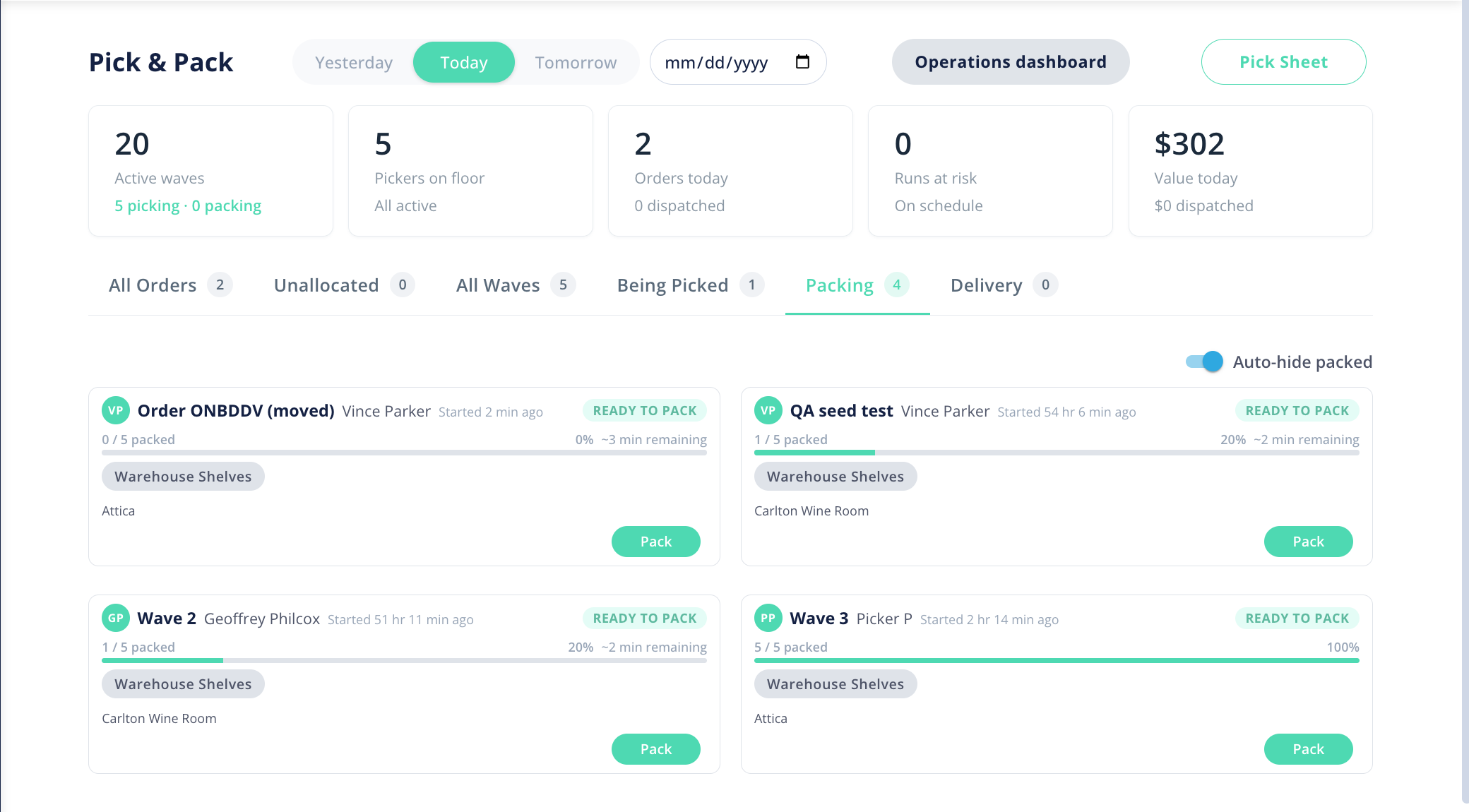
How do I open an order for packing?
- In Pick & Pack, open the Packing tab.
- Open the order (or wave) you want to pack.
How do I pack items into boxes?
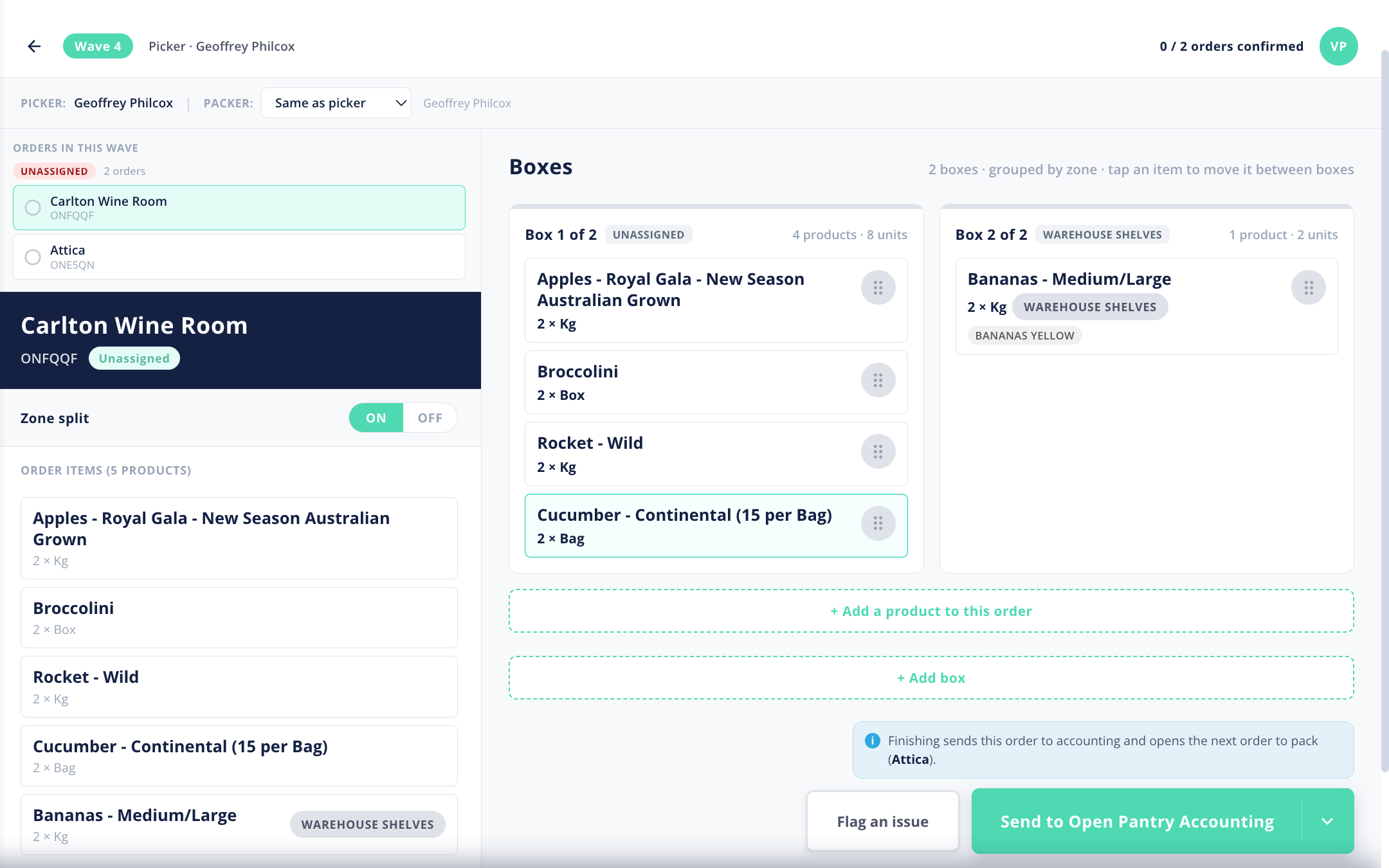
Pack the items into one or more boxes. Each box holds its own list of items (box-items), so you can record exactly what went into each carton — useful for the customer and for the driver. A packing-progress bar shows how much of the order has been packed so far, so it's easy to see when an order is complete.
How do I add a product while packing?
If you need to include something that wasn't on the original order, you can add a product during packing. The added product becomes part of the order so it will be picked up correctly when the order is invoiced.
How do I send an order to accounting?
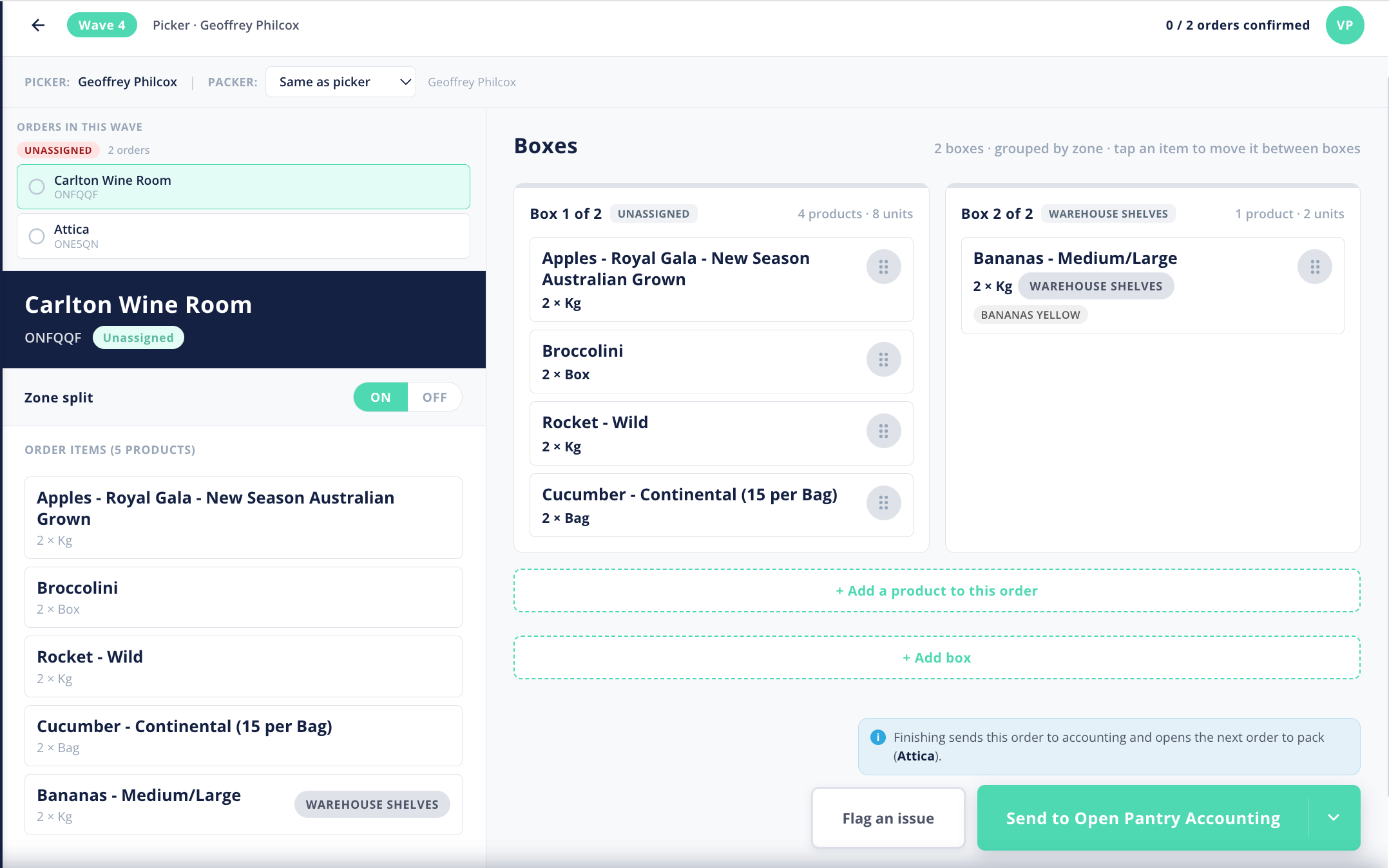
When the order is fully packed, use send to accounting to push it through for invoicing in your connected accounting system. This is the hand-off from the warehouse to billing.
Note: sending to accounting requires your accounting integration to be connected. If it isn't, connect it under Accounting first.