


Pick & Pack: your operations board at a glance
Quick answer: Pick and Pack is your warehouse command centre for turning incoming orders into picked, packed and dispatched deliveries, with live KPIs and a tab for each stage.
Pick & Pack is your warehouse command centre. It's where your team turns the orders that have come in into picked, packed and dispatched deliveries. You'll find it in the left-hand menu under Orders → Pick & Pack, or you can reach it directly at /orders/pick-and-pack. (You may still see the older label "Picking" in one or two places — it's the same screen.)
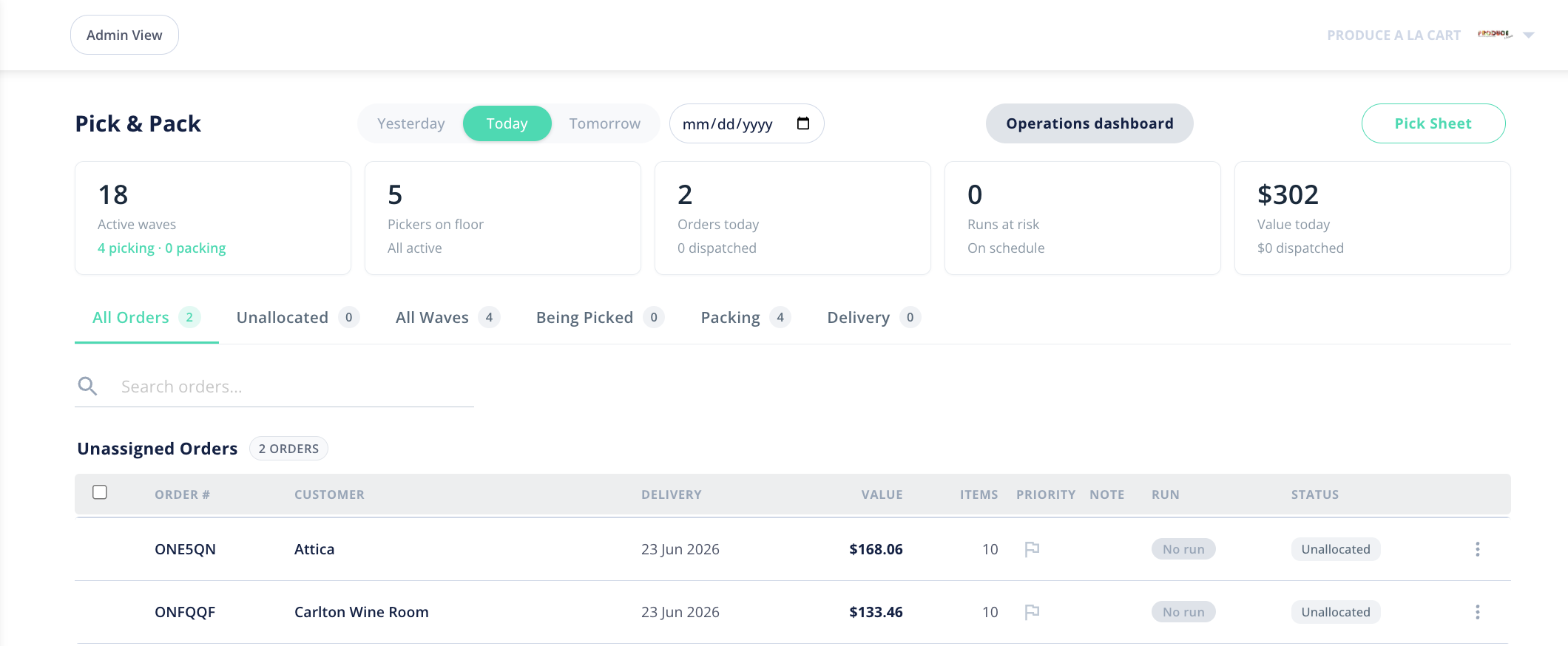
How do I choose which day to work on?
At the top of the page is a date filter with quick buttons for Yesterday, Today and Tomorrow, plus a date picker for any other day. Everything on the page — the KPI cards, the waves and the order tabs — updates to show the day you've selected, so you can prepare tomorrow's orders today or look back at yesterday's.
What do the KPI cards show?
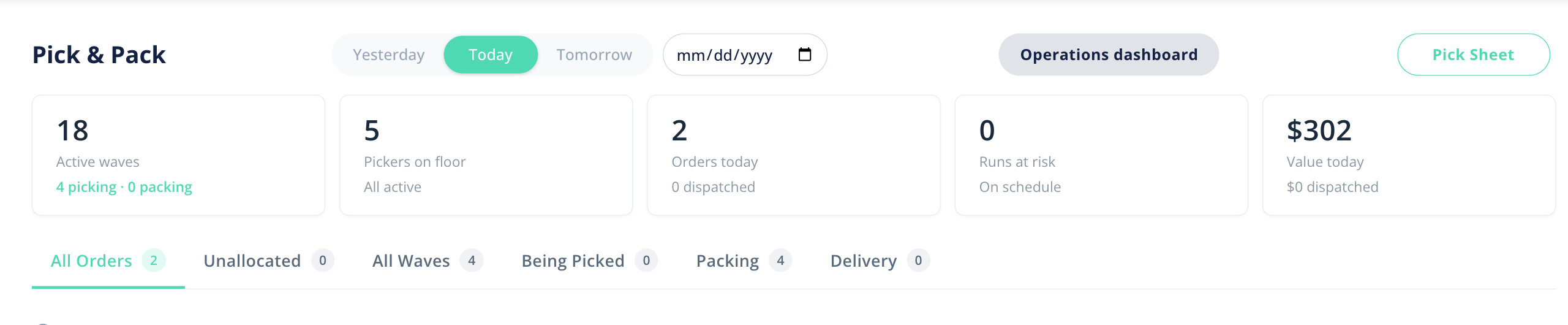
Across the top, a row of cards gives you the state of the floor at a glance for the selected day:
- Active waves — how many waves are in progress, split into how many are being picked and how many are being packed.
- Pickers on floor — how many team members are currently picking.
- Orders today — the day's order count, including how many have been dispatched.
- Runs at risk — a quick health check on your delivery runs (for example, "On schedule").
- Value today — the dollar value dispatched for the day.
There's also an Operations dashboard toggle. Turn it on for the fuller, at-a-glance view of these metrics; turn it off to keep the focus on the order lists.
What do the tabs do?
The tab bar lets you focus on one stage of the workflow at a time:
- All Orders — every order for the selected day.
- Unallocated — orders that haven't yet been put into a wave for picking.
- All Waves — the full list of waves and their progress.
- Being Picked — orders currently being picked.
- Packing — orders ready to pack or being packed.
- Delivery — orders that have moved on to delivery.
What is the Pick Sheet button?
The Pick Sheet button produces a printable picking sheet so your team can pick away from a screen if they prefer paper.
Next steps: once you understand the board, see "Picking a wave" and "Packing an order" for the step-by-step workflow.