


Back
Drivers and the driver app
Quick answer: Add drivers as team members with a login; they use the driver app to work their stops, capture proof-of-delivery photos and mark each stop delivered.
Drivers are team members who deliver your runs. You add them once, give them a login, and they use the driver app on their phone to work through their stops and confirm each delivery.
How do I add a driver?
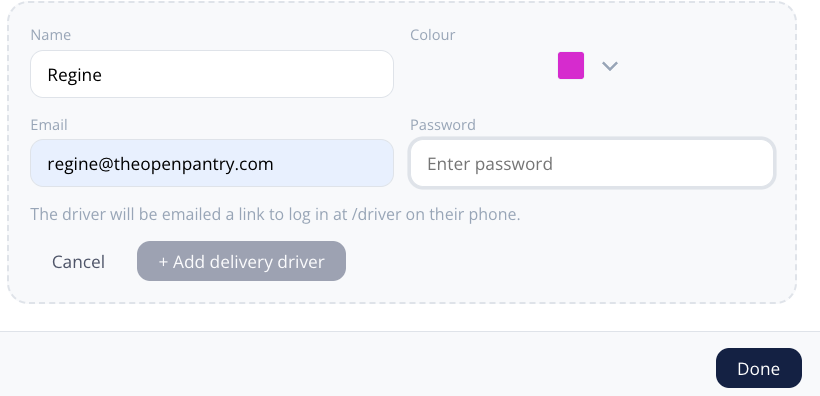
- Add the driver as a team member with the driver role, including a password for them to log in with.
- You can change a driver's details later. The password is optional when editing — leave it blank to keep the current one, or enter a new password to change it.
How does a driver log in and out?
The driver signs in to the driver app with the email and password you set. There's a clear logout option so they can sign out at the end of a shift, especially on a shared device.
How does a driver navigate a run?
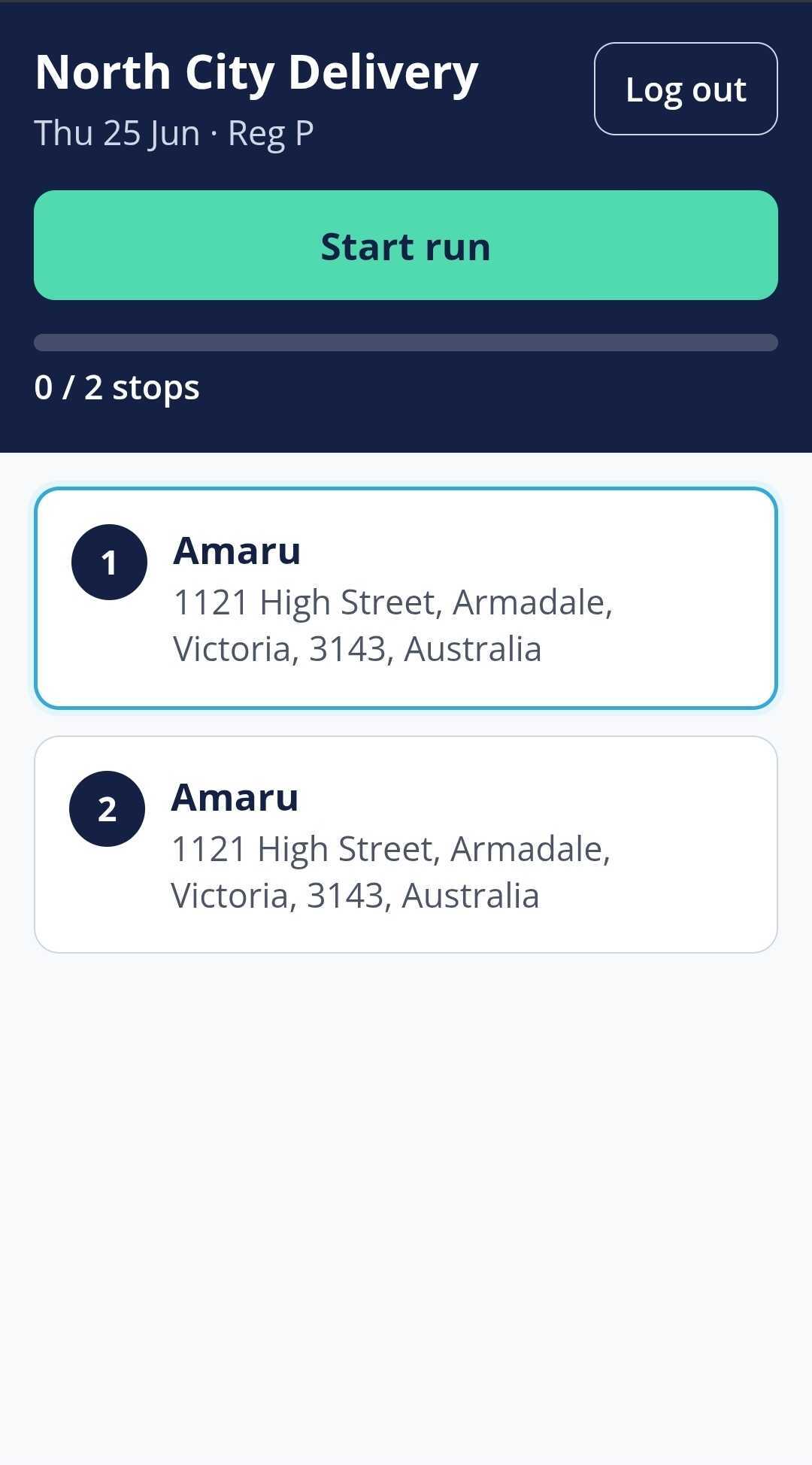
- Once a run is assigned to them, the driver sees their list of stops in order.
- The app guides them to the next stop and they work down the run one delivery at a time.
How does a driver complete a delivery with photo proof?
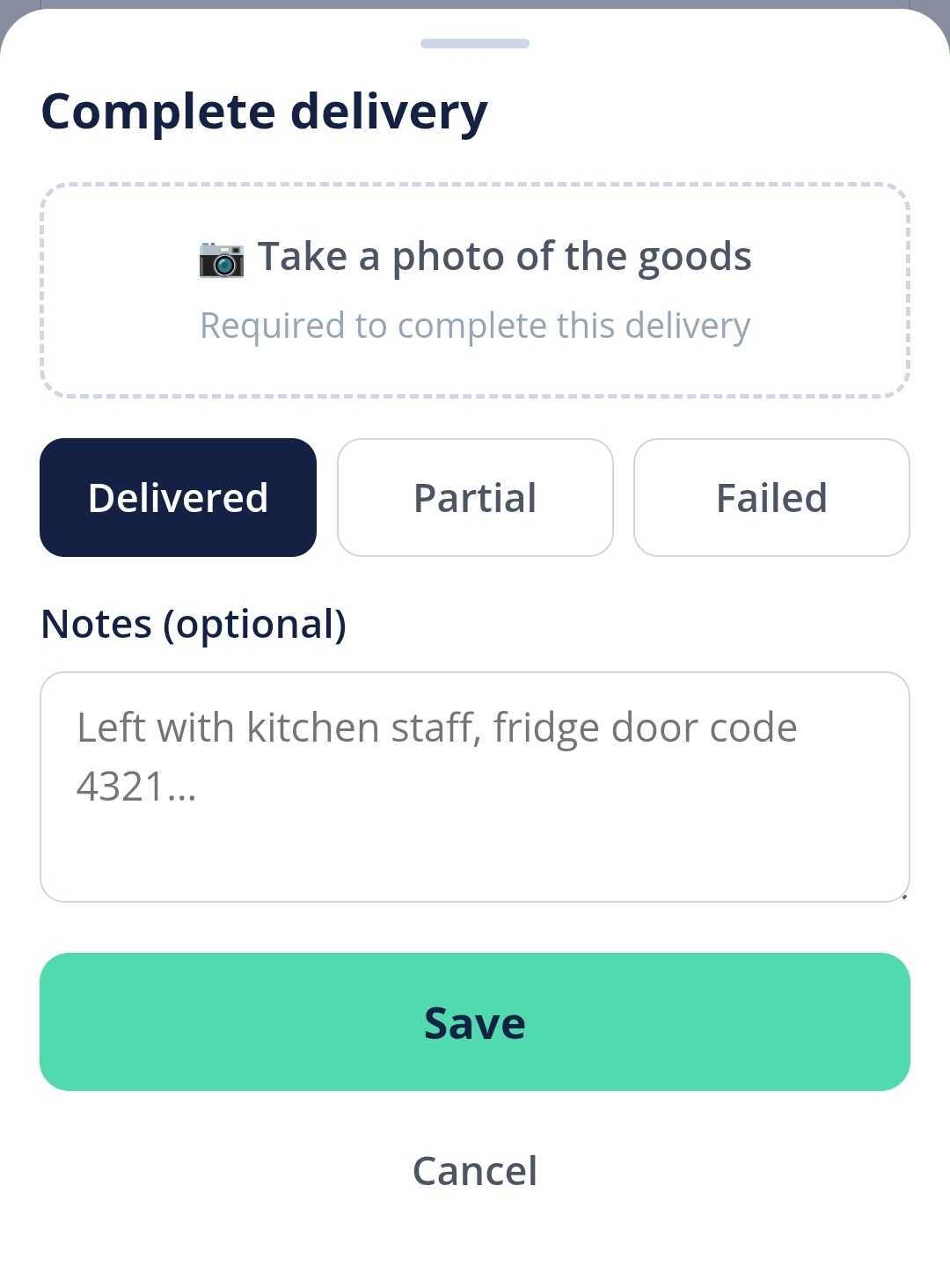
- At each stop, the driver completes the delivery and can capture a photo as proof of delivery.
- They mark the stop delivered, and it updates on your delivery board so you can see progress in real time.
Tip: as a supplier you can follow a run's progress from the Delivery screen while your driver works through it.