


Back
How to send orders to your accounting system in bulk
If you have connected an accounting system, you can push a batch of orders across to it from the Orders screen instead of invoicing them one by one.
- Select Orders in the menu, then All orders.
- Tick the checkbox at the left of each order you want to send.
- Select Export in the top right.
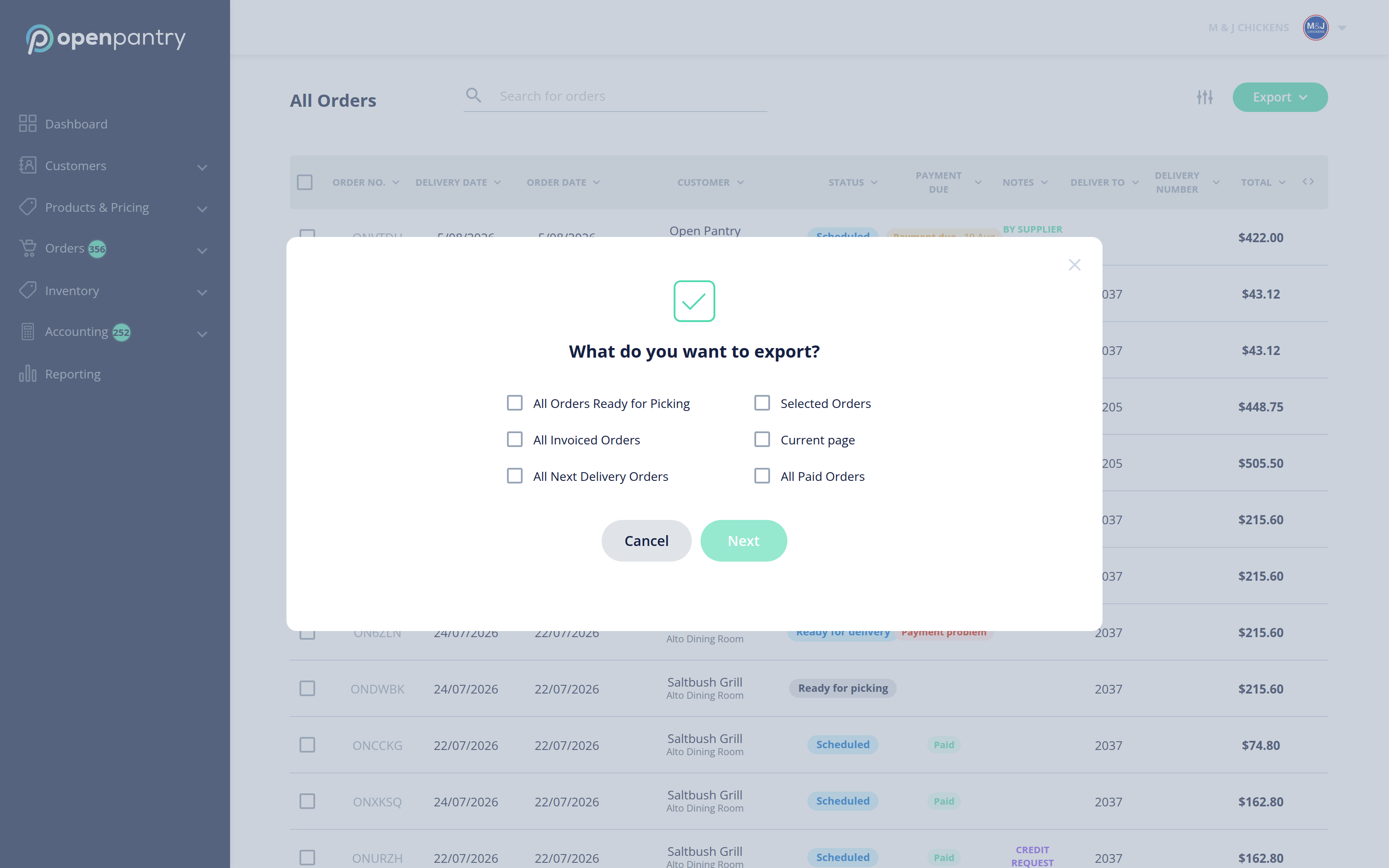
- Choose Selected Orders, then Next.
- Choose Finalise & Invoice.
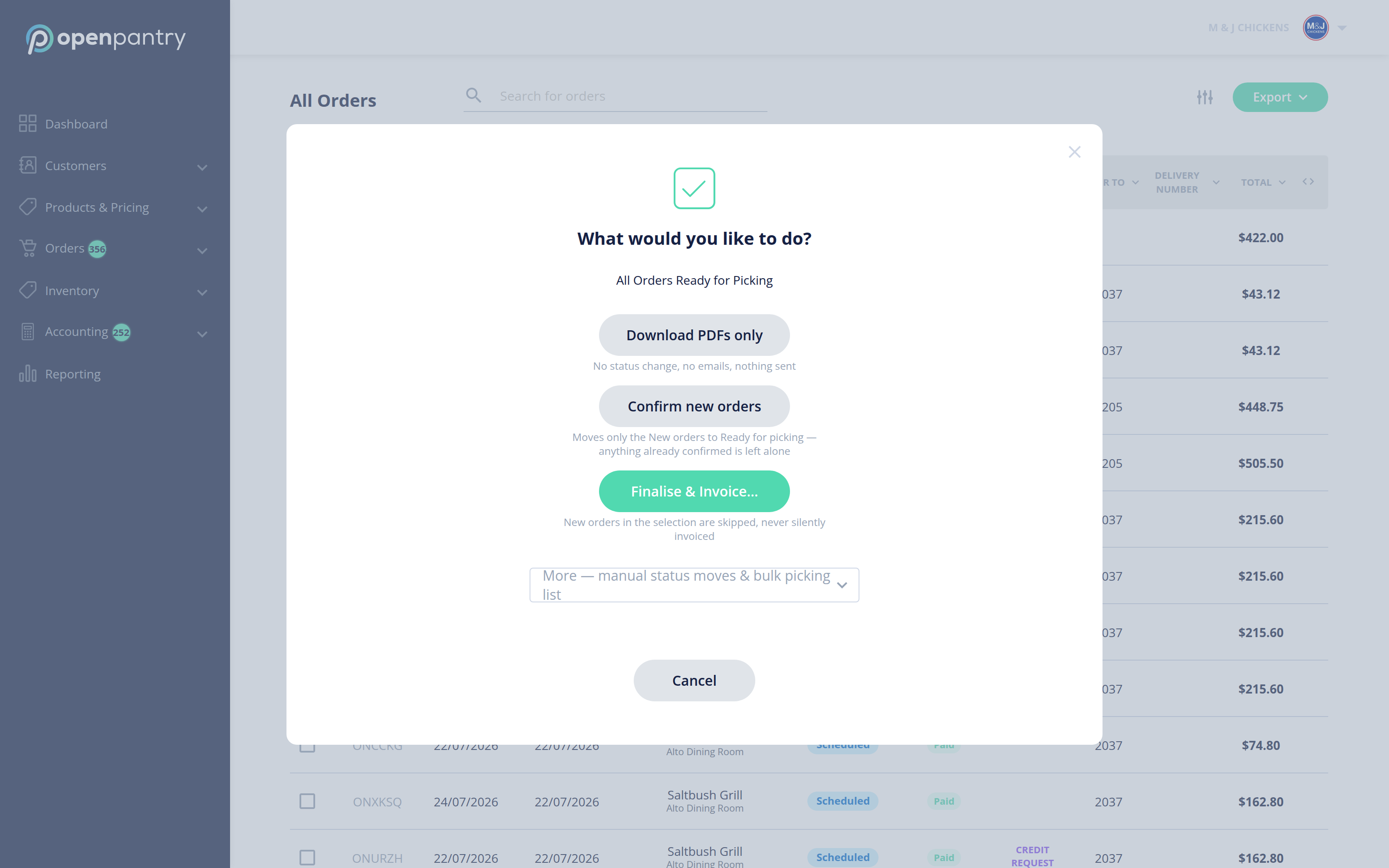
The orders move to Invoiced and appear in your accounting software as a draft invoice or draft order, depending on which system you use (Xero, MYOB, QuickBooks, Sage and others) — ready for you to confirm and issue from there.
To check that the sync itself is healthy, use Accounting → Invoices in the left menu. It shows what has synced, what has failed and why, and lets you retry.
Note: the option was previously called "Finish Order With Integration". It is now Finalise & Invoice.