


Back
How to process orders
Choose Orders in the left menu. The tabs across the top follow your customers’ orders through to delivery:
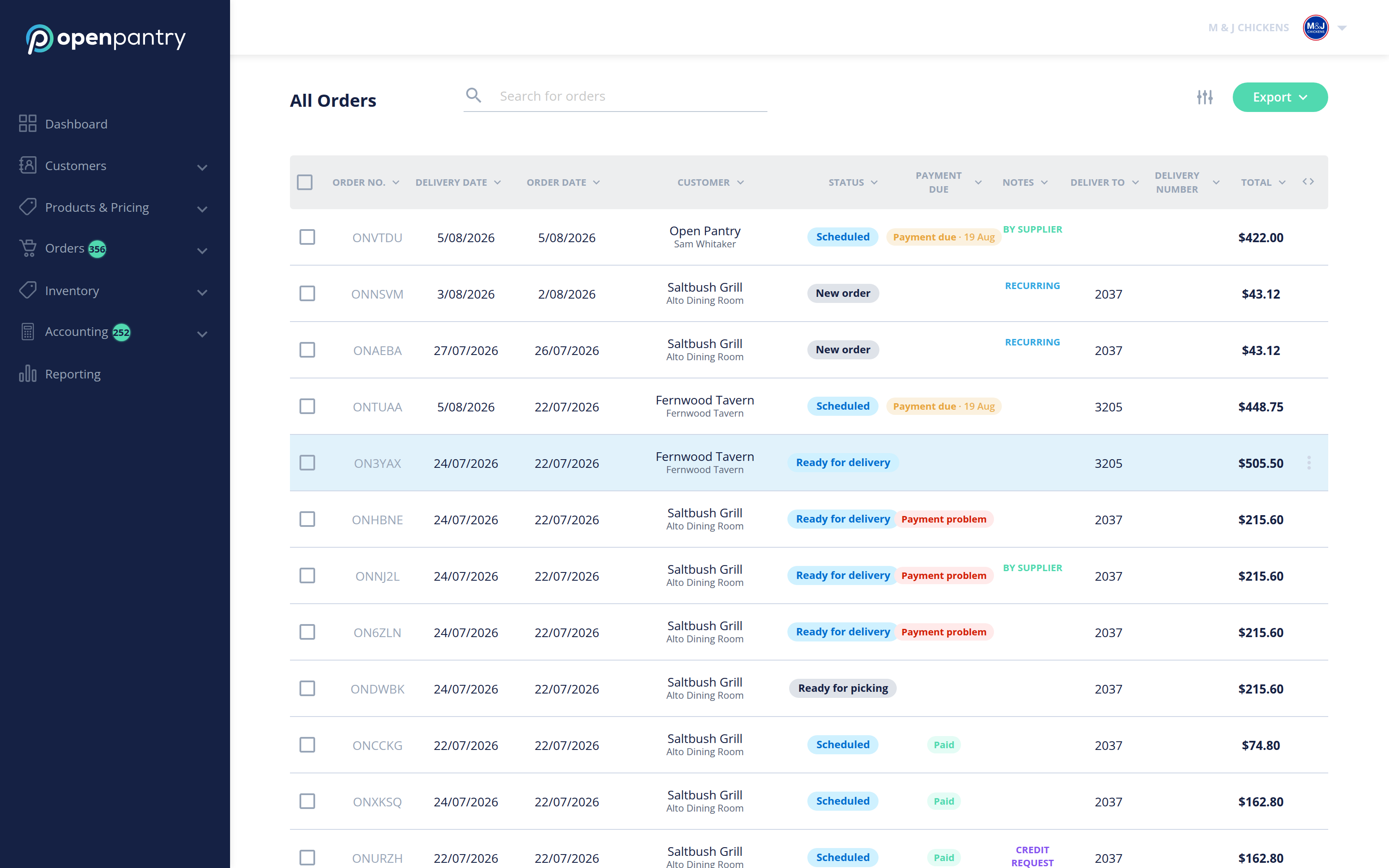
- All orders — everything, whatever its status. Use search and Filters to narrow it down.
- Pick & Pack — the warehouse (below).
- Imported orders — orders that arrived by email, EDI, SMS, WhatsApp, voicemail or a webstore, waiting to be confirmed.
- Drivers — the people who deliver your runs.
- Credits — credit requests, credit notes and refunds.
Open any order to see its lines, delivery details and status. Its main button moves it on: Start picking, then Finalise & invoice, then Mark paid.
Picking and packing
Pick & Pack groups orders into waves — a batch of orders picked together.
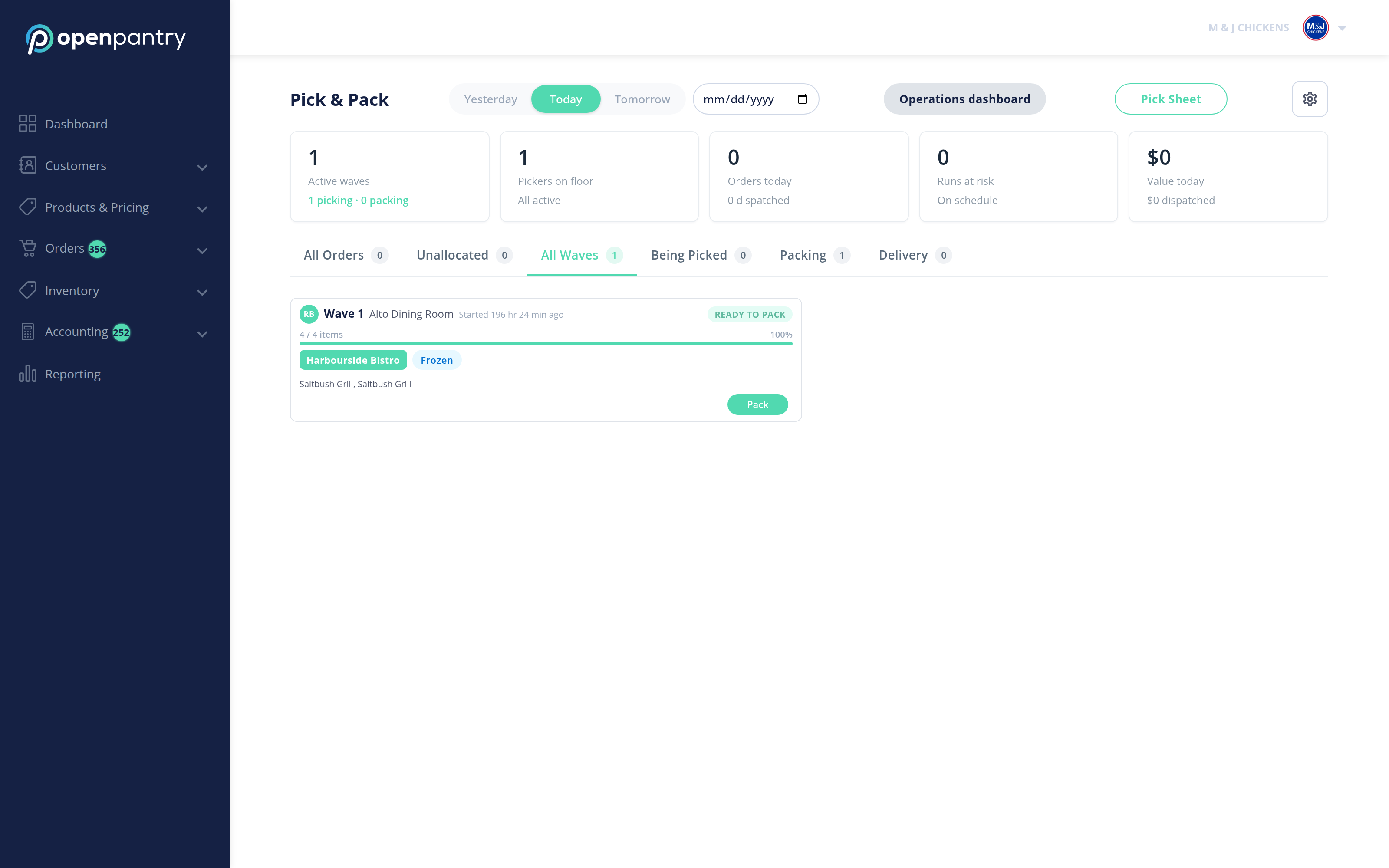
- The tabs are All Orders, Unallocated, Picking, Packing, Delivery and Weight log.
- Picking is a board: a To assign column plus one column per picker. Build waves suggests waves from orders not yet in one; Auto-assign shares them out.
- Packing works the same way for packers. Bench screen shows a person’s next job on a screen at the packing bench.
- Delivery is your delivery runs board.
- Pick Sheet prints what the floor needs.
See The picking and packing boards, wave builder and auto-assign for the details.