Back
How to Upgrade Plans
How do I upgrade or change my plan?
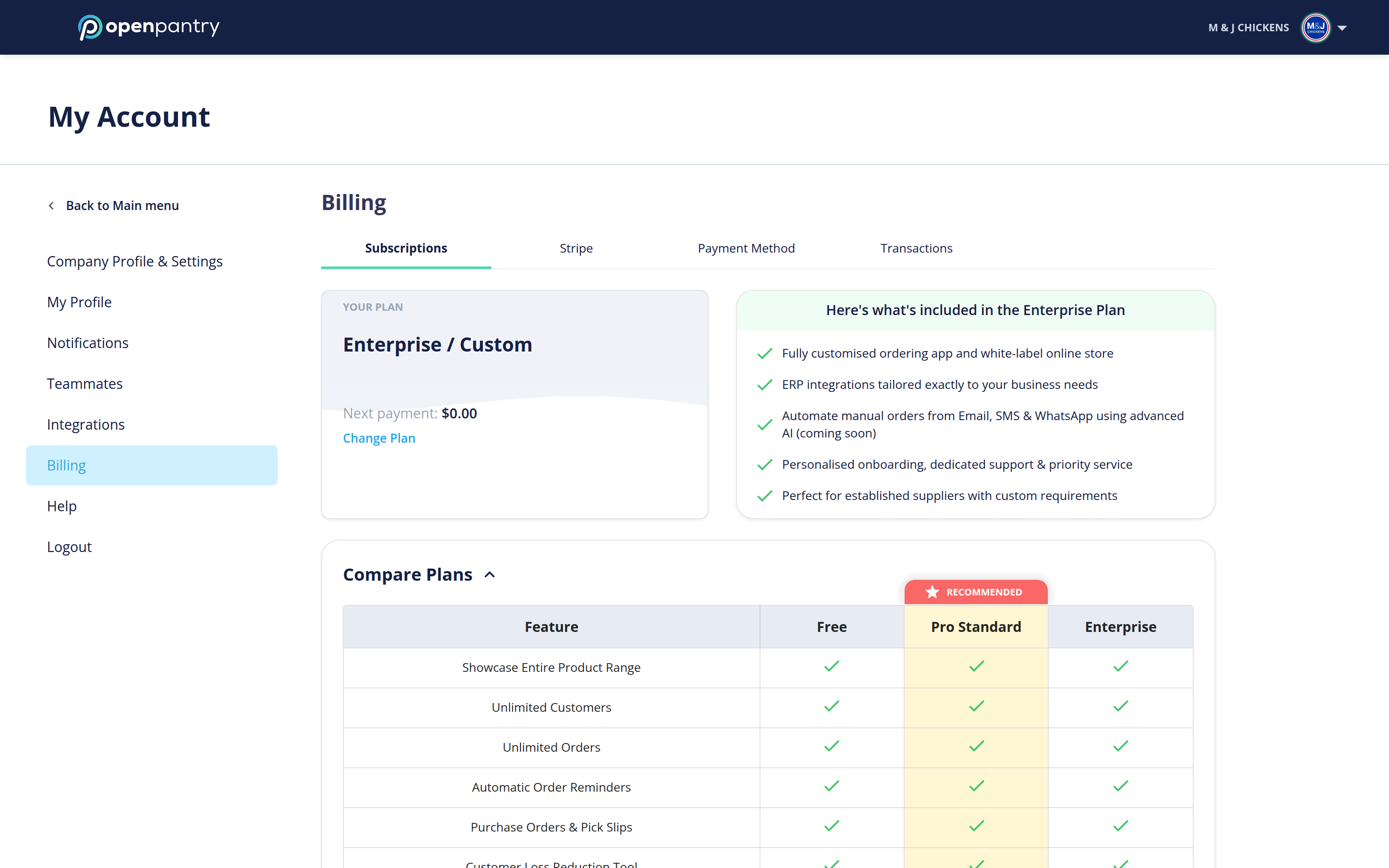
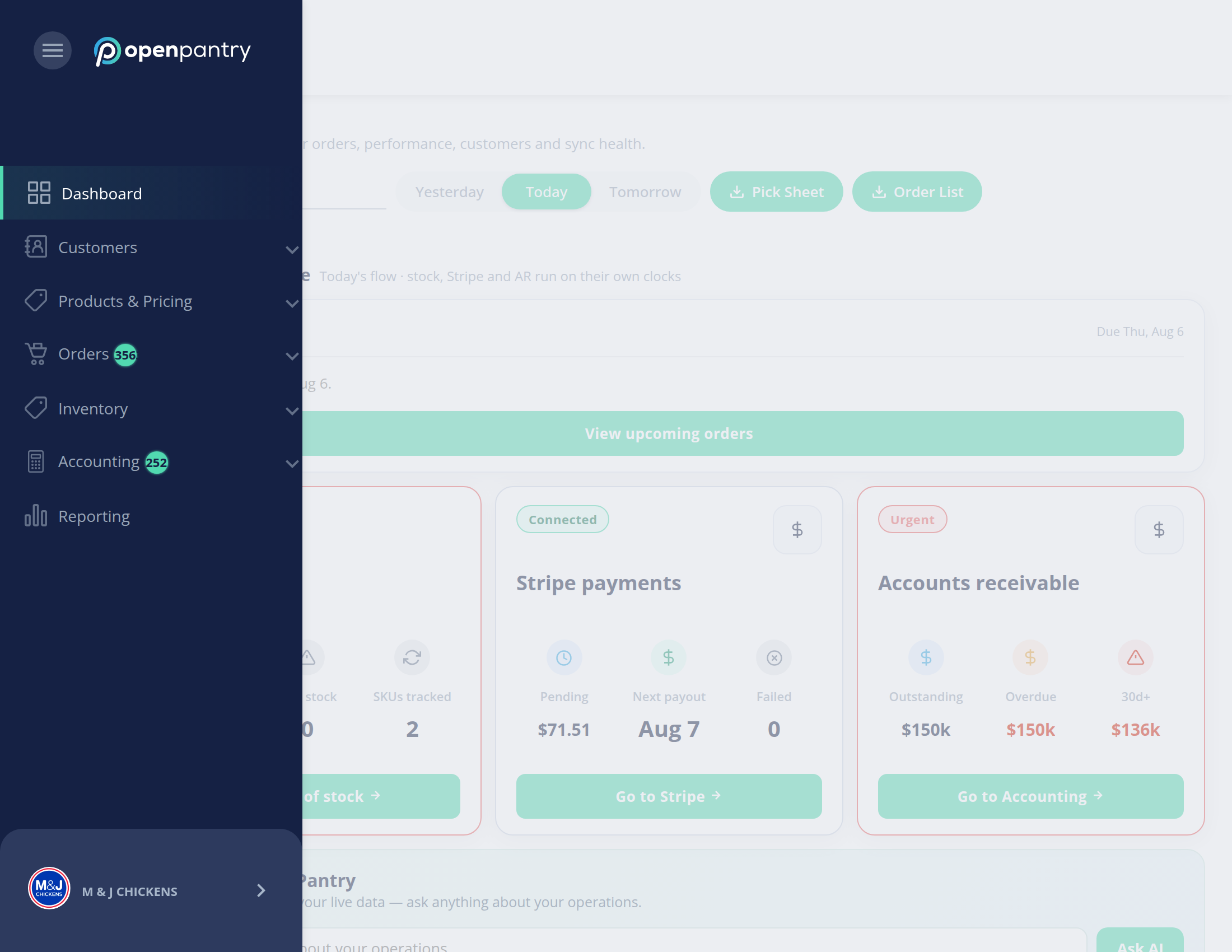
Open the account menu: on a wide window, click your business name in the top right. On a narrow window, tap ☰ in the top left, then your business name at the bottom of the menu.
- Choose Billing. It opens on the Your plan tab, showing Your Open Pantry plan.
- Click Upgrade plan (or Change plan if you are already on a paid plan).
- Pick the plan and billing cycle (monthly or yearly), check the summary and pay.
The summary shows the credit for unused time on your current plan and the amount due today. See Changing plans: how the credit for unused time works.
For Enterprise, use Schedule a call on the Enterprise card and we will set it up with you.
The other Billing tabs are Card payments from customers (taking card payments through Stripe) and Your payment cards (the card you pay Open Pantry with).