Back
How to add a customer manually
How do I add a customer manually?
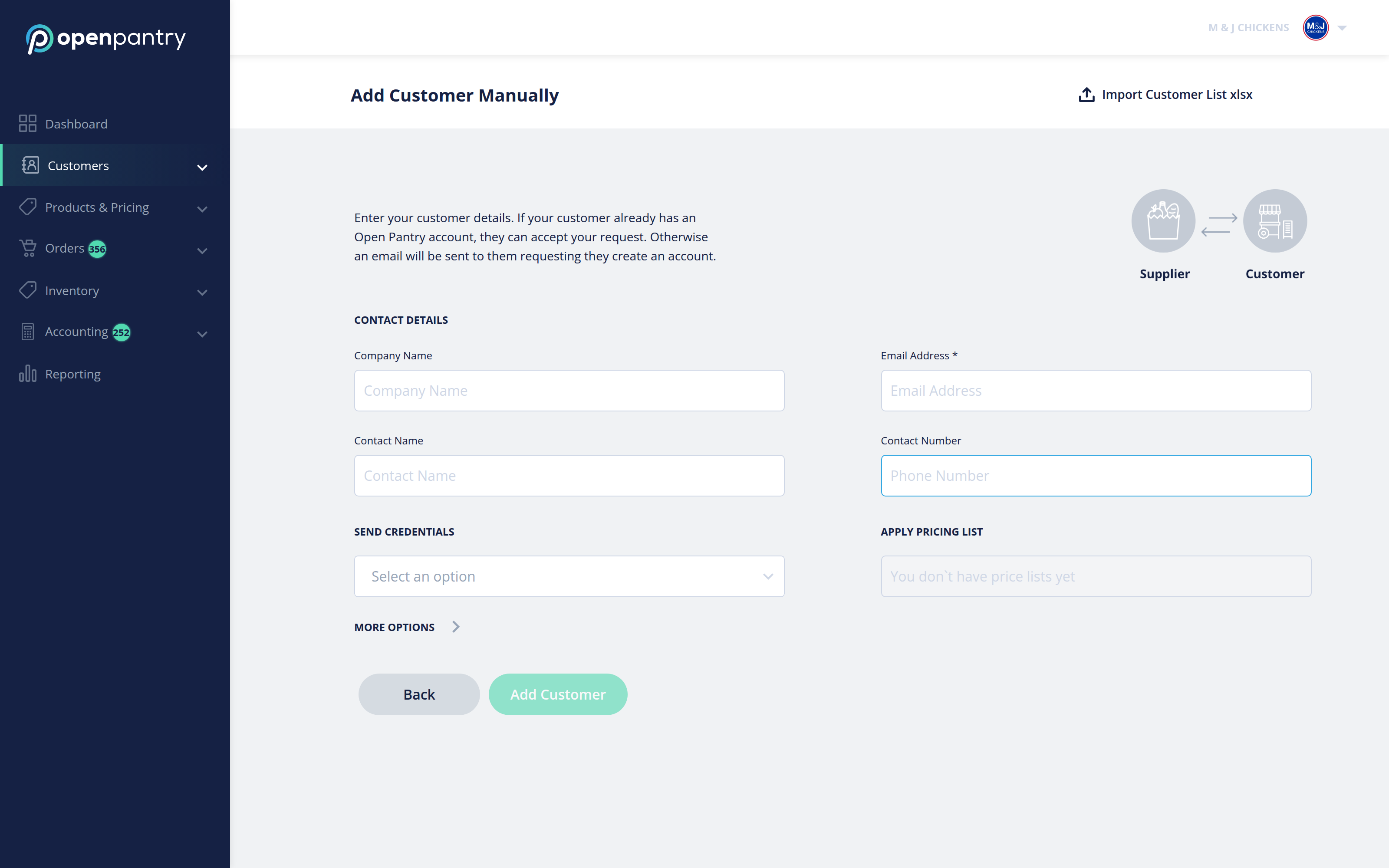
- Choose Customers in the left menu, then Add customer. The Add customers panel opens on the One tab.
- Fill in Business name and Email, and optionally Contact name and Phone.
- Check the Price list. Your default list is already chosen.
- Need more? Click More details for Customer ID and Delivery number.
- Leave Send invite now on to email them a welcome invite with login details, then click Add & invite. Turn it off to set them up first (pricing, delivery, visibility); the button changes to Add customer and they are saved as Not invited, ready to invite later from their row.
If they already have an Open Pantry account they simply accept your request. If not, the invite explains how to create one, free.