


Back
How to Add Customer List
You can add customers one at a time, or bring a whole list in from a spreadsheet. Both start in the same place.
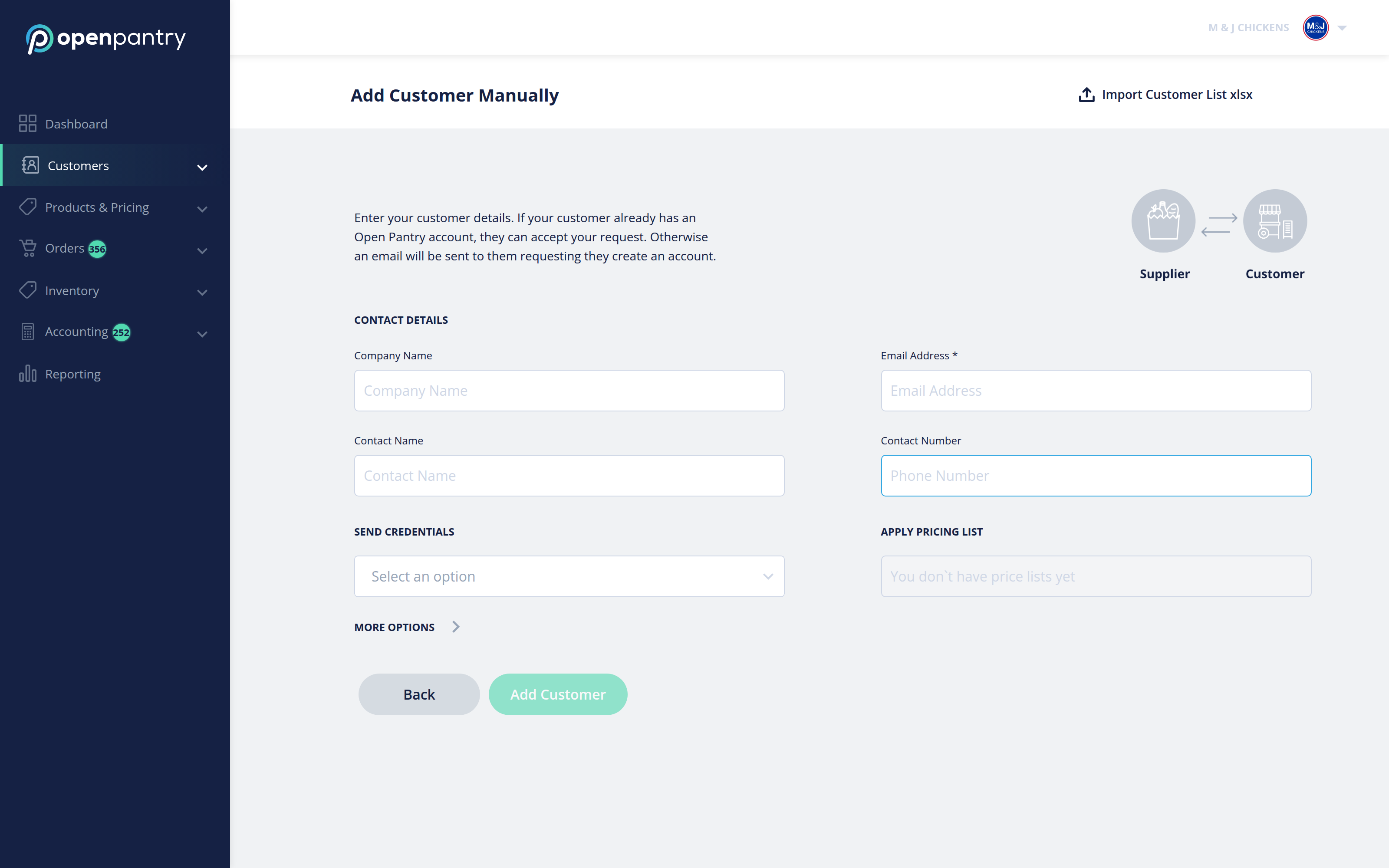
- Choose Customers in the left menu, then Add customer. (You can also use the ⋯ menu → Import from spreadsheet.)
- In the Add customers panel, choose Spreadsheet.
- Download your customer list (or the template if you have no customers yet). Your current customers are already in it — add new rows or edit existing ones.
- Save it as .xlsx and drop it back in with Drop your file.
- Check the rows. Each is marked New, Changed, Unchanged or To fix, and you can fix problem rows right there. Choose who gets an invite now and who gets No invite yet.
- Click Import N customers.
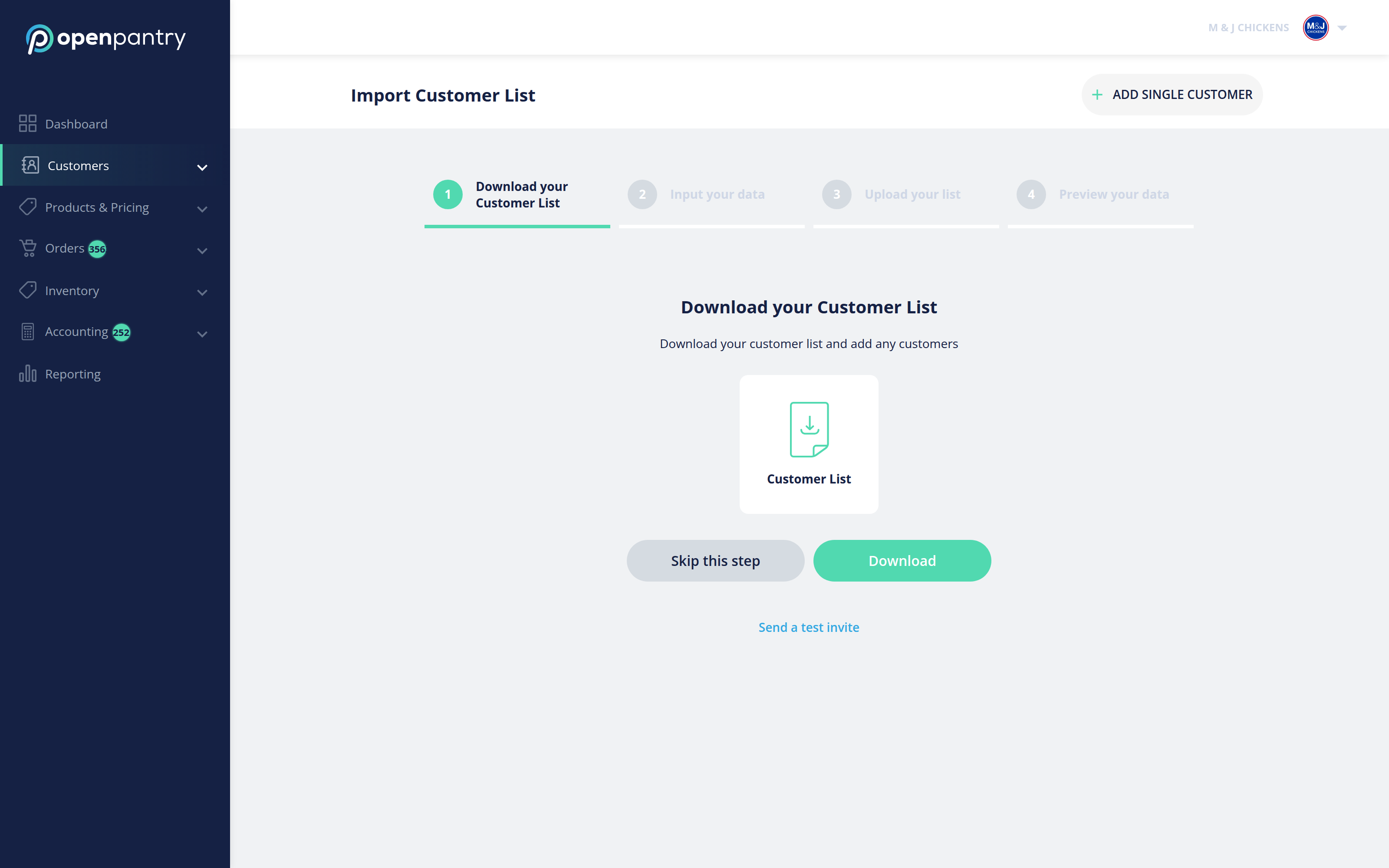
Want to see what your customers will receive? Use Send a test invite to email yourself the welcome email (up to 25 a day).