


Back
How to add a supplier
Select the ☰ menu button in the top left of the screen, then Manage Suppliers.
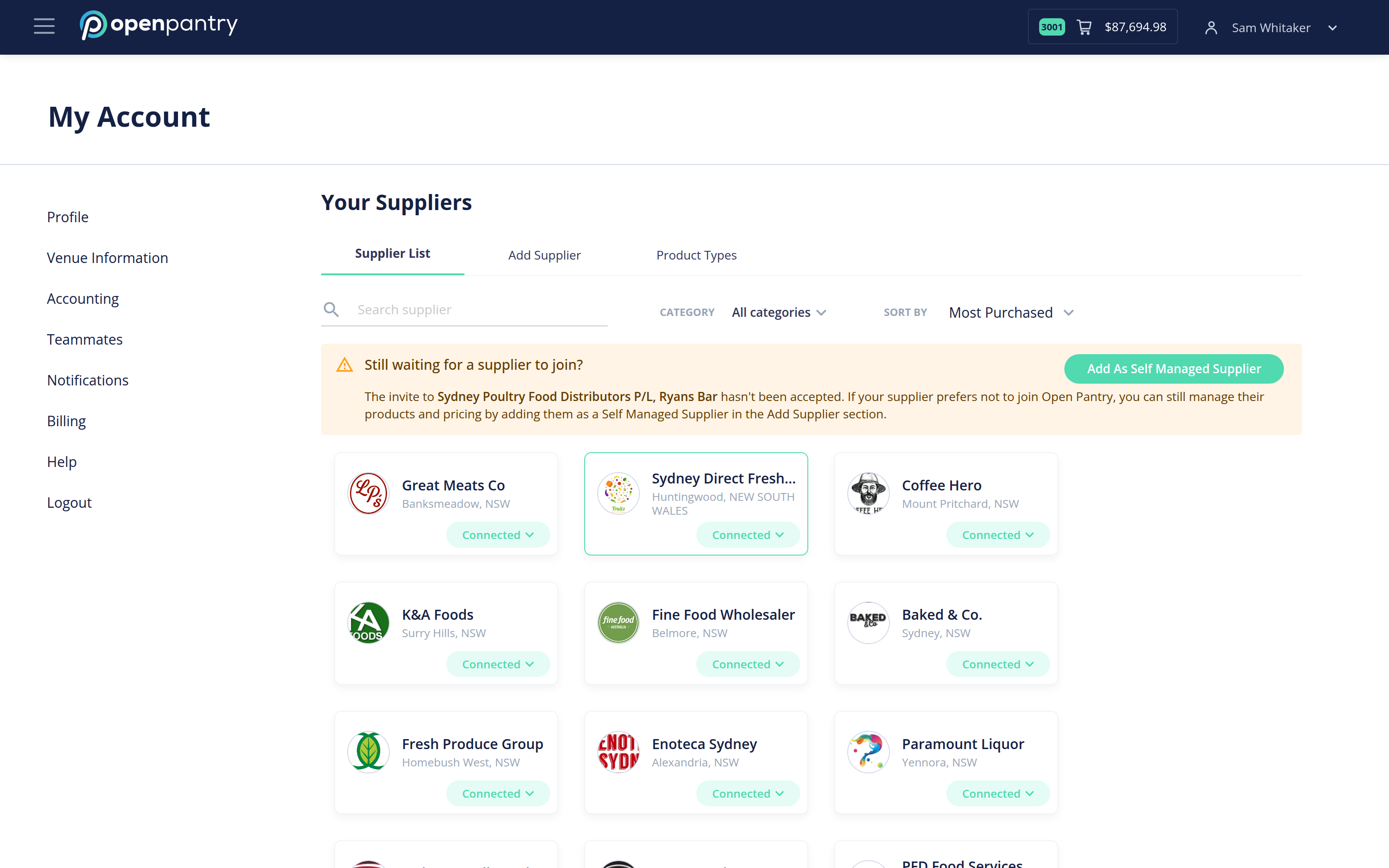
- Select the Add Supplier tab.
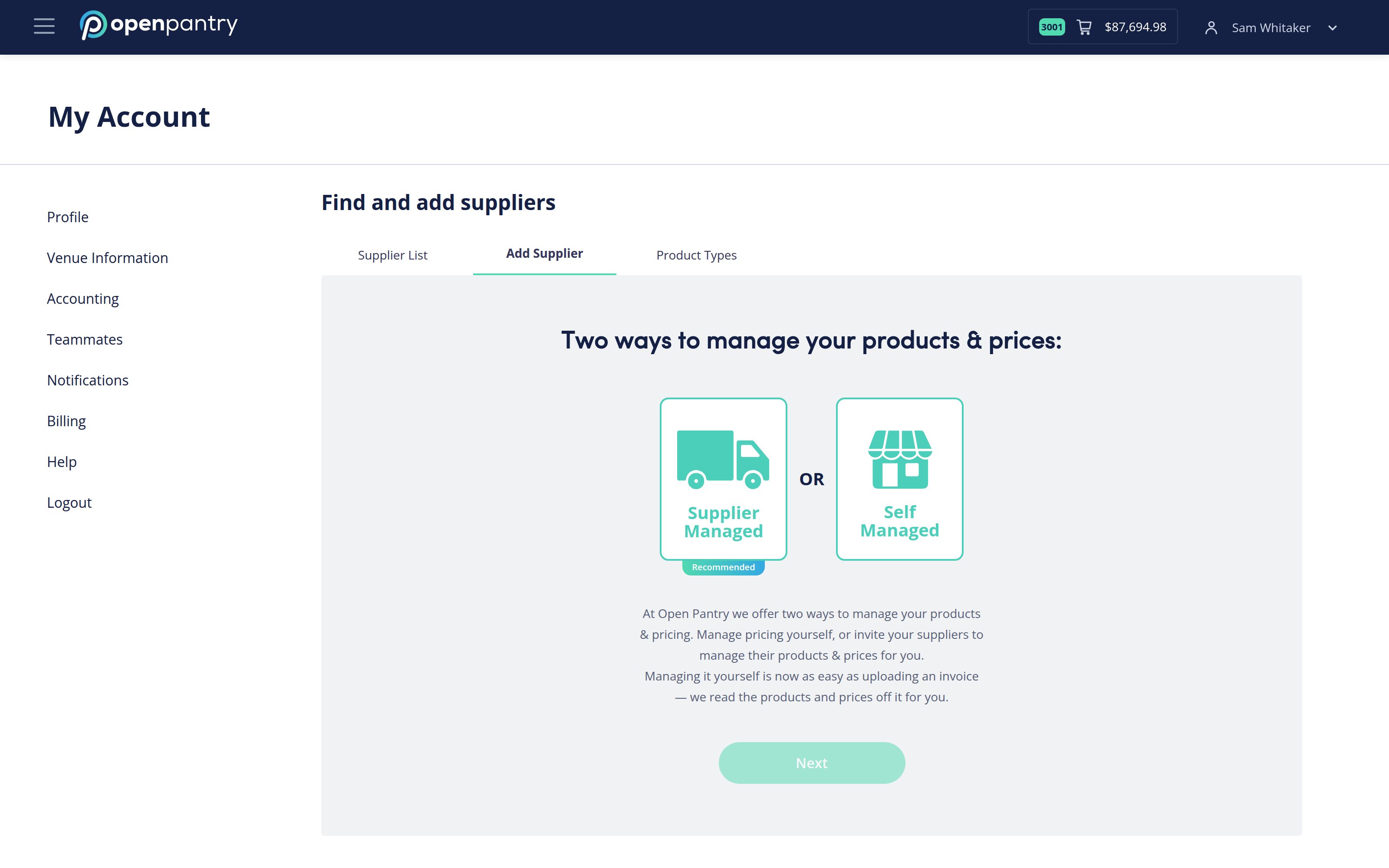
- Choose Supplier Managed. This is the option to use when you want the supplier to keep their own products and prices up to date.
- Fill in the supplier's details and select Add Supplier & Invite.
- Choose the category they supply and confirm. A connection request is sent automatically.
The supplier receives an email inviting them to sign in to Open Pantry, where they upload and manage their own product list. Until they accept, they appear on your Supplier List as waiting.
If a supplier is not going to join, you can still order from them — see How to add a self managed supplier.