


Back
How to add products using a spreadsheet
How do I add products using a spreadsheet?
If you are adding or repricing more than a handful of products, the spreadsheet is the quickest way.
- Go to Products → Catalogue and click Add products. In the Add products panel, choose Spreadsheet. (The ⋯ menu → Update from spreadsheet opens the same thing.)
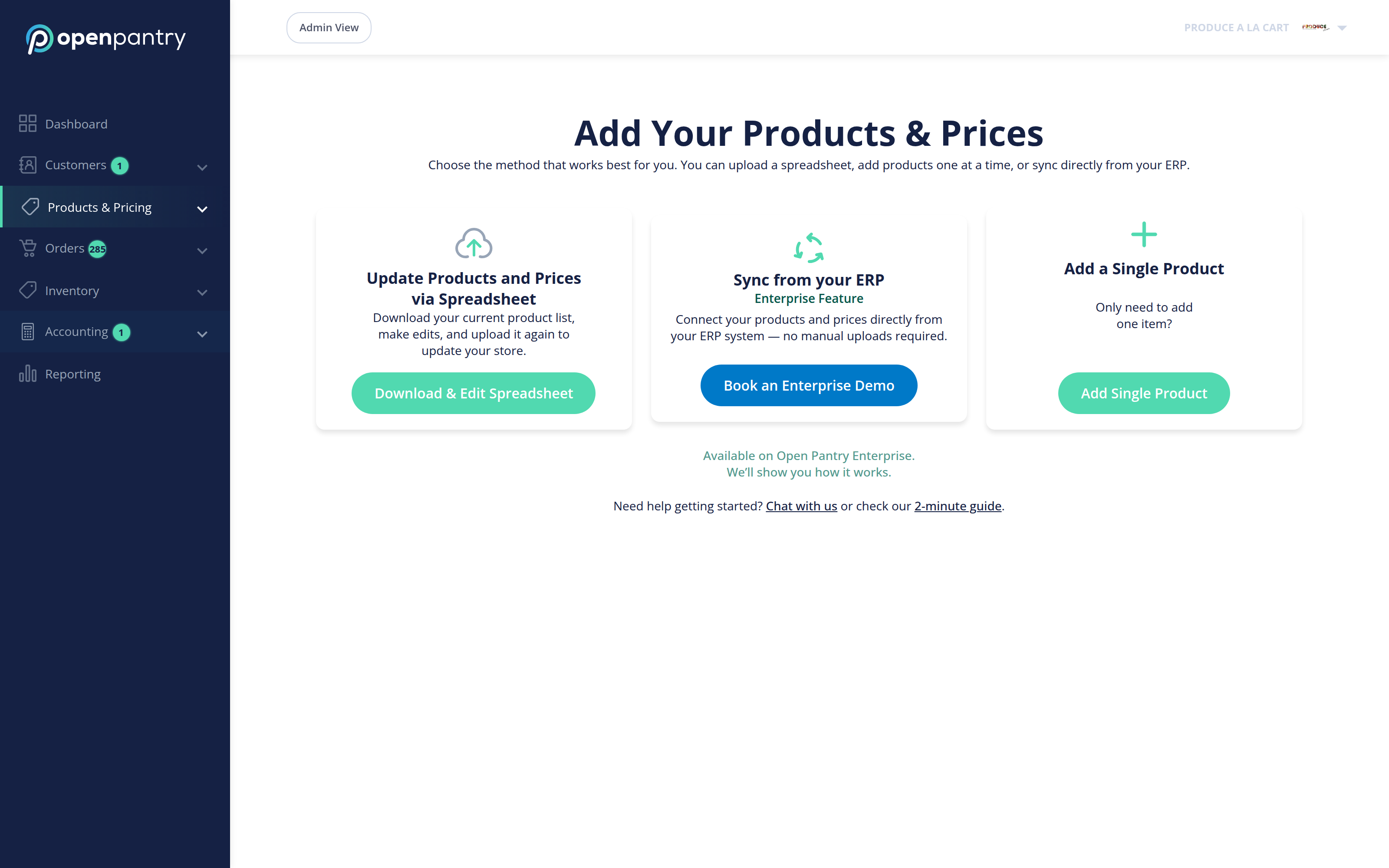
- Click Download your product list (or Download the template if you have no products yet). Your current products are already in it — add new rows or change prices. Download a fresh copy each time rather than reusing an old file, so you are editing what is in your store today.
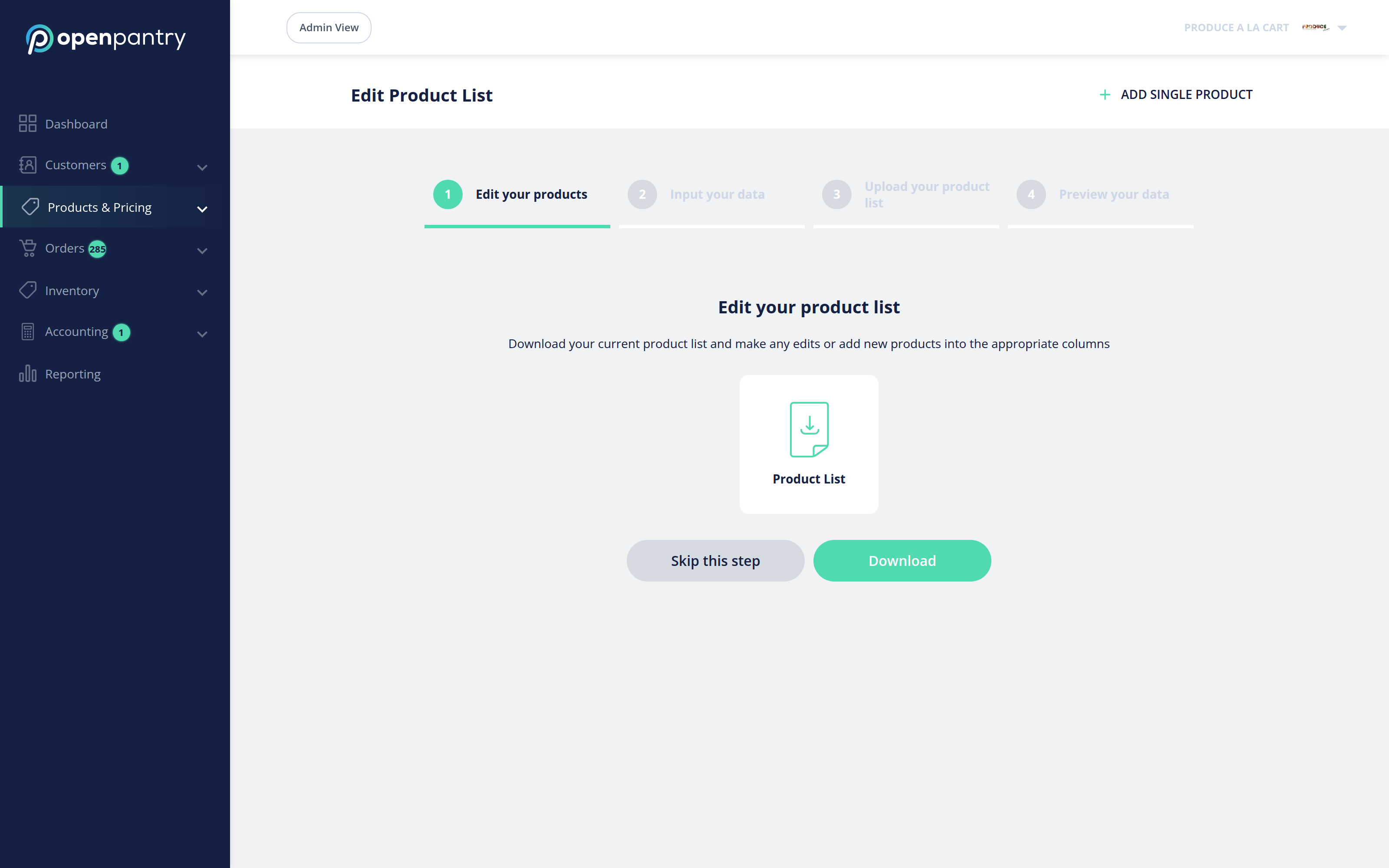
- Fill in the columns already in the file — name, brand, unit, tax, your cost (what you buy it for, which margin pricing uses), category and a price per price list. Keep to the template’s columns so the import lands cleanly.
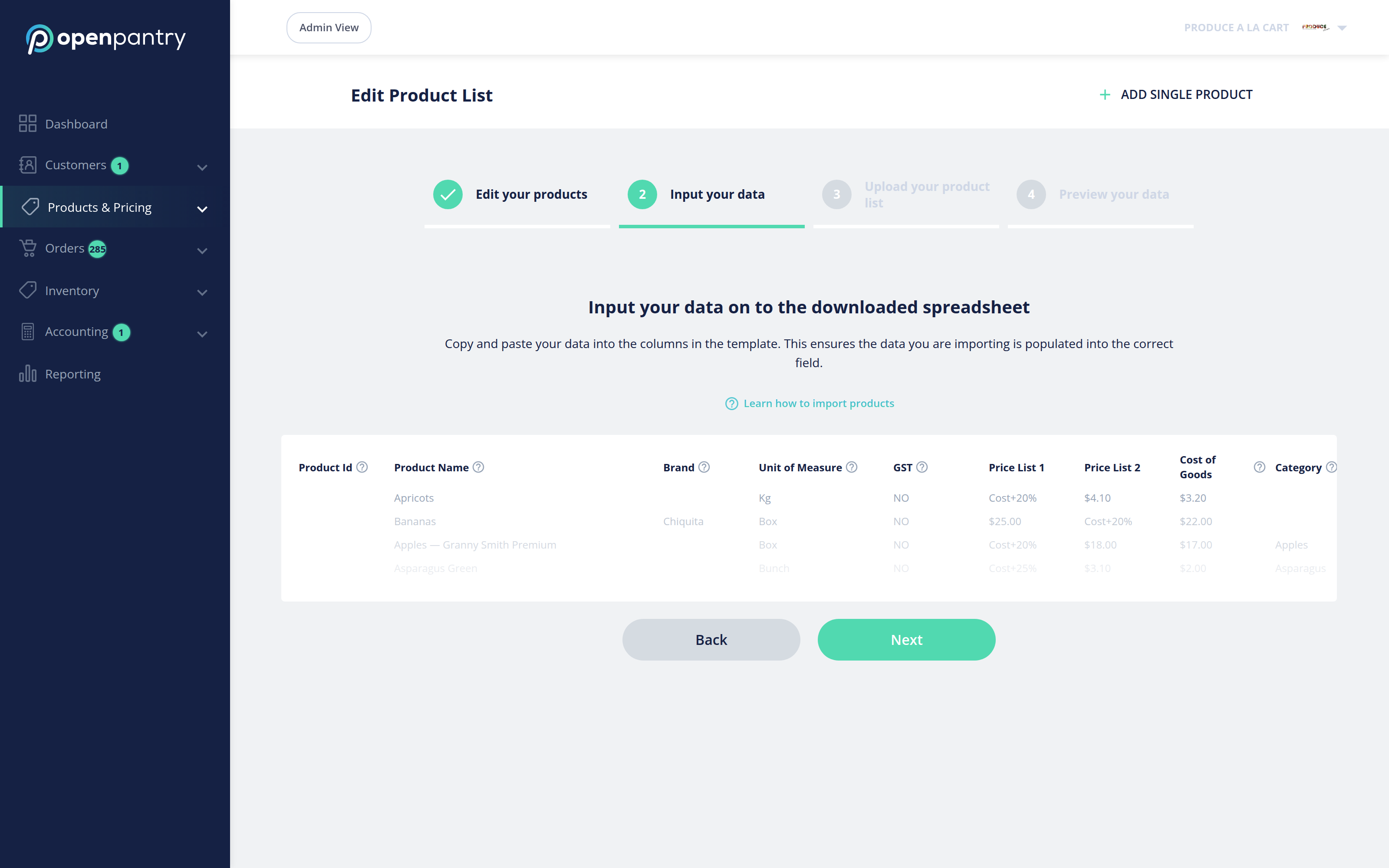
- Save it as .xlsx and drop it onto the panel. Large lists can take a minute or two.
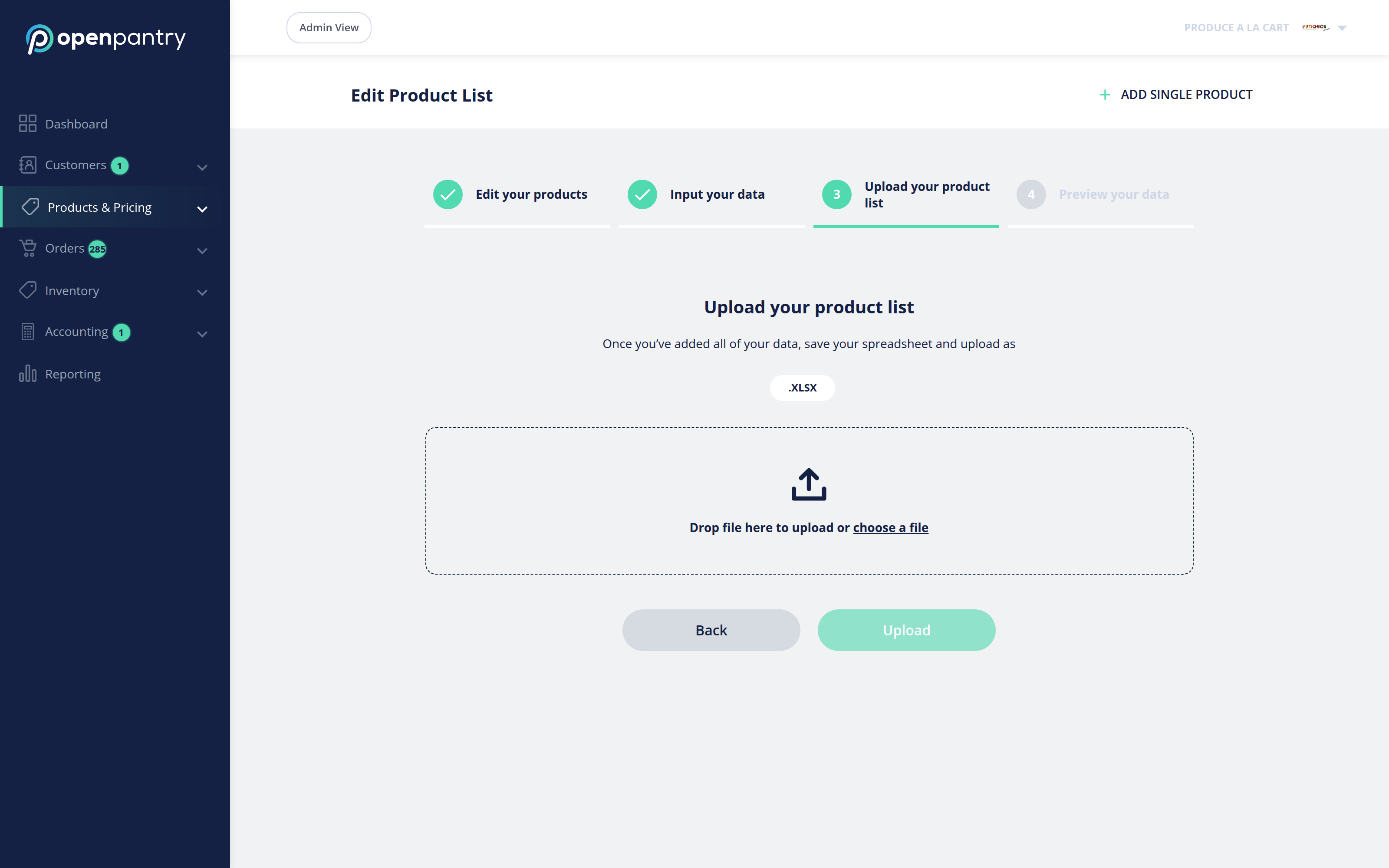
- Check the rows. Fix anything flagged with Fix, then click Import N products. Nothing changes in your store until you do.
Have a supplier price list as a PDF, Excel or photo instead? Under Other ways to add products, choose Upload your price list — AI reads it and you check it.