


Freight rules & delivery schedules
Quick answer: Set freight rules in Company Profile: delivery fee, order cut-off, minimum order, free-delivery threshold and the days you deliver.
Freight rules set how you charge for delivery and when you deliver — and you can apply different rules to different customers. It's a two-step setup: create the rule, then assign it.
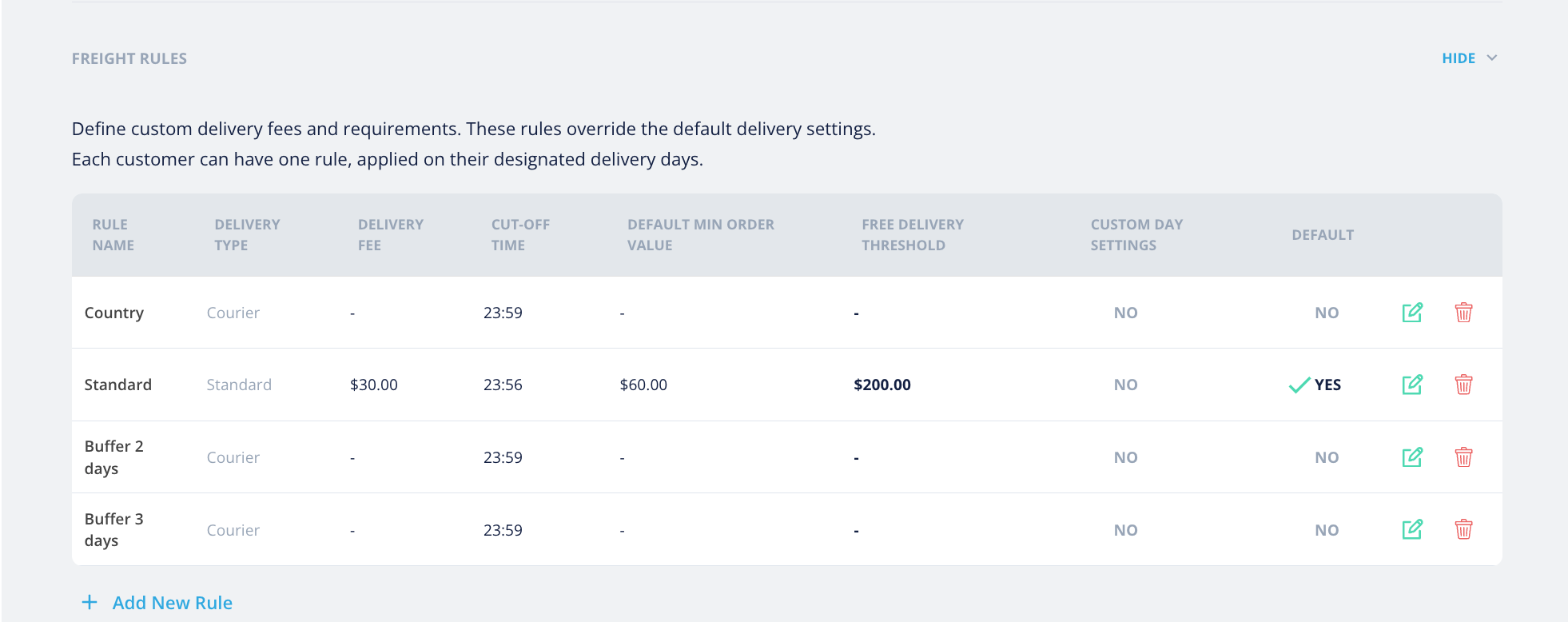
1. Create your freight rules
Go to the account menu (top right) → Company Profile & Settings → Freight Rules. Each rule sets:
- Delivery fee — what you charge for delivery.
- Cut-off time — the deadline by which an order must be placed for the next delivery.
- Minimum order value — the smallest order you'll deliver.
- Free-delivery threshold — the order value above which delivery is free.
- Custom delivery days — optional control over which days you deliver (see below).
You can have several rules (for example Standard, Country, Buffer 2 days) and mark one as the default. Use Add New Rule to create more.
2. Assign a rule to a customer
- Open the customer: Customers → Customer List → the customer → Freight tab.
- Pick their Freight Rule.
Each customer can have one rule, which overrides the default delivery settings for them.
How do I set delivery days?
"Delivery schedule" — which days a customer gets delivery — is set in two places, depending on whether it's for one customer or many:
- For a single customer — open the customer's Freight tab and edit their delivery schedule there.
- For a group of customers — use a freight rule's Advanced scheduling: turn on Custom Day Overrides to choose exactly which days (Mon–Sun) delivery is available, and set a Delivery Day Buffer (how far ahead customers must order). Apply that rule to every customer who should share the schedule.
Rule of thumb: Edit one customer in their customer detail; apply the same schedule to many via a freight rule.