


Labels & scales: label templates, Zebra printing, weight log and receiving by weight
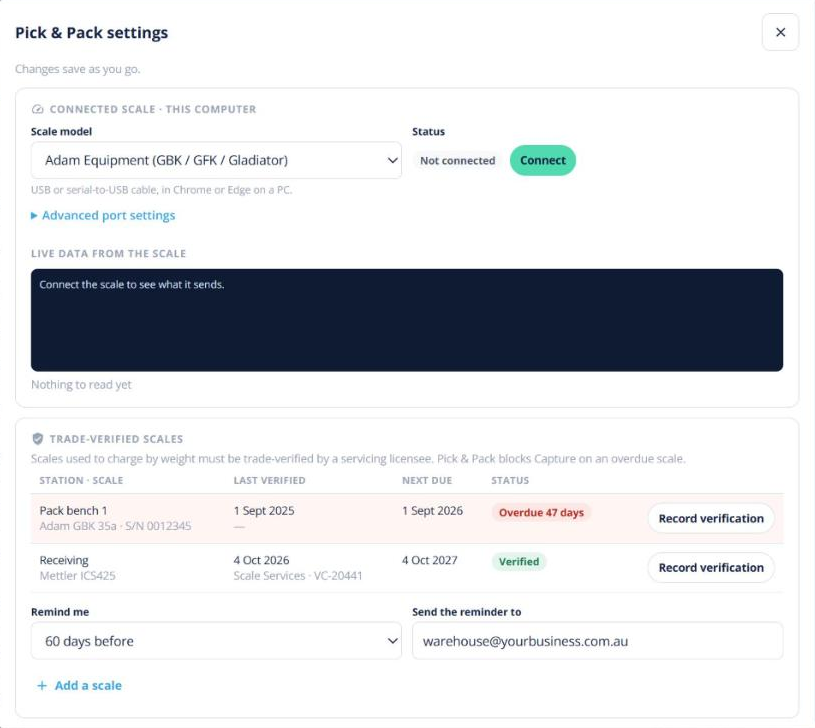
Quick answer: Labels & scales is one switch in Pick & Pack → ⚙ (Enterprise, off by default). It adds label templates, printing carton labels as you weigh, a weight log, tolerance checks, scale profiles, a register of trade-verified scales and receiving purchase orders by weight. Click Scale & label settings to set it up.
Label templates
Go to Inventory → Settings → Labels & printing. Templates cover carton, product, shelf or bin and pallet (SSCC) labels. Click New template to design your own, or Test print to check one. Labels print as PDF or to a Zebra thermal printer, with a default printer per station.
Printing while you weigh
On the picker’s weigh sheet, tick print-on-capture and every weighed carton prints its label straight away. You can also scan a supplier’s weight label instead of reweighing, reprint or edit a carton, and type a weight with a reason if the scale isn’t working.
Tolerance and trade-verified scales
- On the product form, the Sold by weight card sets a tolerance. A weight outside it needs an override.
- The Trade-verified scales register records each scale and its verification date. Stations with an overdue scale are blocked.
Weight log
The Weight log tab in Pick & Pack lists every weight captured, with search, links to the order and a CSV export.
Receiving by weight
Purchase orders with a weighed line open in By weight (scan) receiving mode, so each carton’s kg is captured as it comes in.