


Product Visibility — show or hide products per customer
Quick answer: Control which products each customer can see with Product Visibility: set a default, then show or hide products by customer group or product group.
Product Visibility ("Product Visibility & Access") controls which customers can see which products. Find it under Products & Pricing → Product Visibility (/products/visibility-groups). There are two layers — start with the simplest.
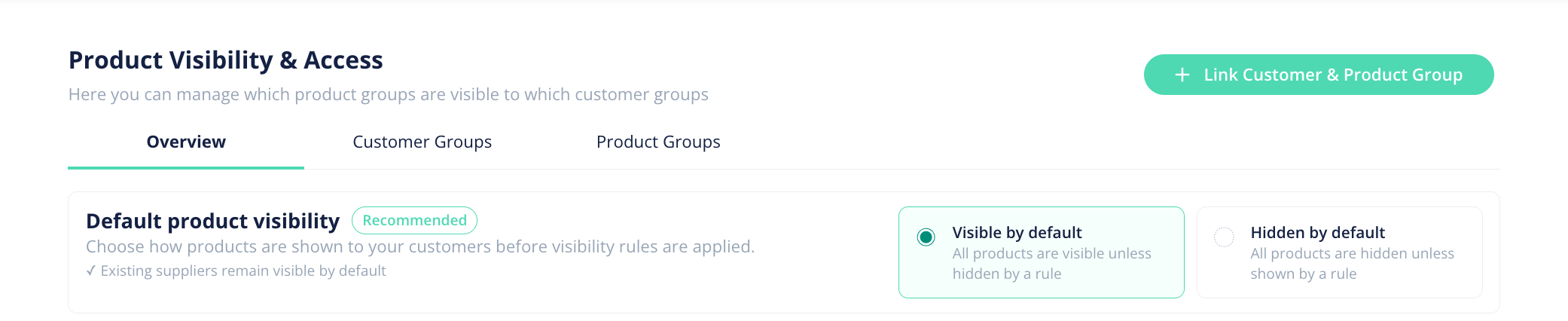
1. Set your default
At the top, choose whether products are:
- Visible by default — everyone sees everything unless a rule hides it (recommended, and where most suppliers stay).
- Hidden by default — nobody sees anything unless a rule shows it.
2. Add rules with groups
To hide or show specific items for specific customers, you link a Customer Group to a Product Group:
- Open the Customer Groups tab and create a group of customers (for example, "Cafés").
- Open the Product Groups tab and create a group of products (for example, "Wholesale-only lines").
- Back on Overview, click Link Customer & Product Group to create a rule that shows or hides that product group for that customer group.
So to hide a set of products from certain customers: put those customers in a customer group, put those products in a product group, then link them with a hide rule.
How do I hide a single product for a single customer?
If you only want to hide one product from one customer (rather than setting up groups), do it at the product level in Price Exceptions — open that customer and hide the specific product there. Use this for one-off tweaks; use visibility groups when you want the same rule across many customers or products.
Related: See the existing articles "Hide a specific product" and "Hide or make a single product visible" for the product-level method.