


Quotes
Quick answer: Create per-customer quotes with custom line items on the Price Exceptions screen, then convert an accepted quote straight into an order.
Quotes let you give a customer a price for specific products before they commit. Once they're happy, you can turn the quote into ongoing custom pricing or straight into an order — without re-keying anything.
You'll find Quotes alongside Price Exceptions, on the Products & Pricing → Price Exceptions screen (there's a Quotes tab), and quotes are managed per customer.
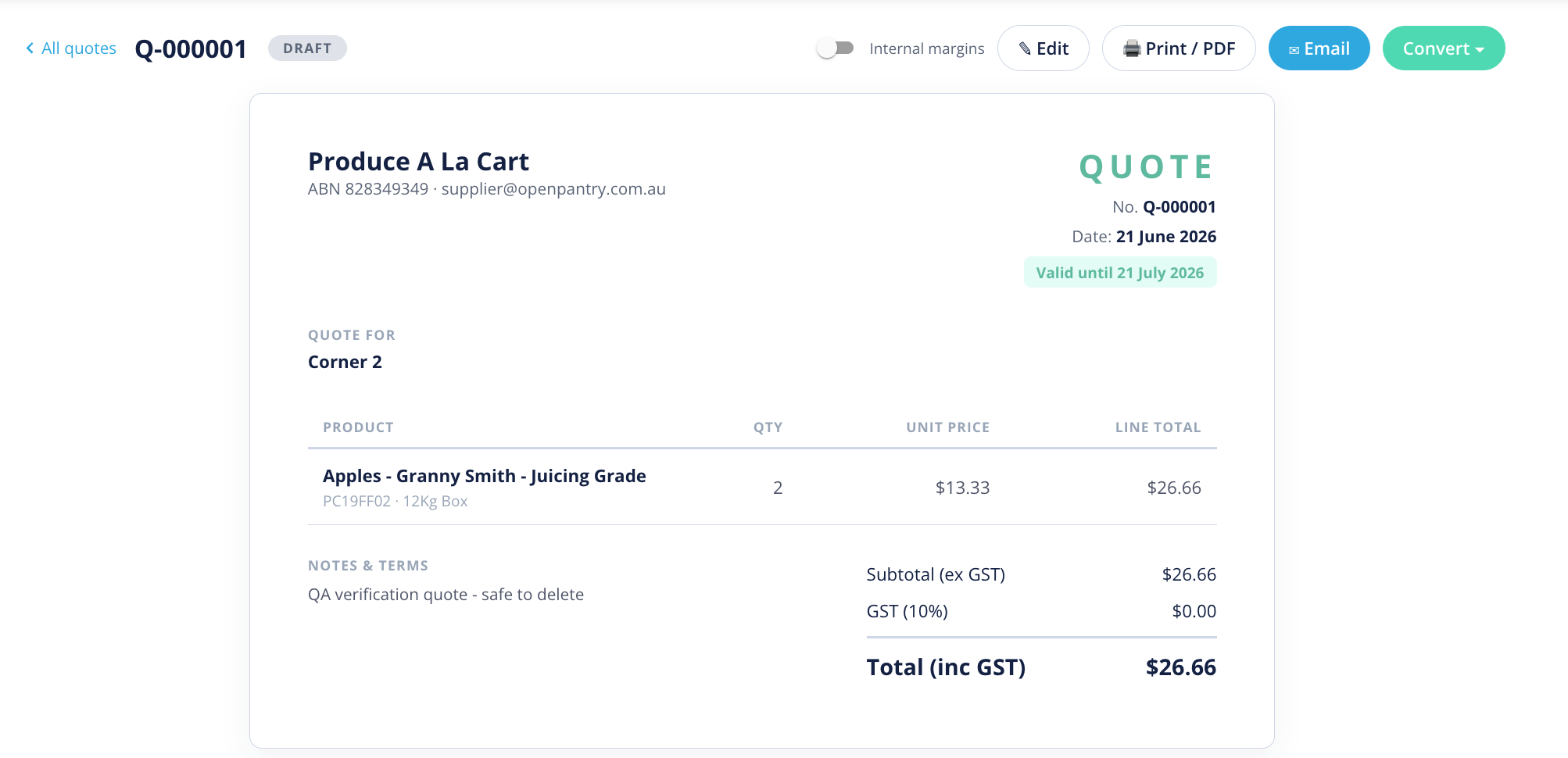
How do I create a quote?
- Go to Products & Pricing → Price Exceptions and open the Quotes tab.
- Choose the customer the quote is for.
- Add the products and the quoted prices.
- Save the quote so it's ready to share or convert.
How do I convert a quote?
When the customer accepts, you have two choices:
- Convert to a price exception — makes the quoted prices the customer's ongoing custom pricing, so they apply automatically every time they order.
- Convert to an order — turns the quote straight into an order at the quoted prices.
Related: For more on customer-specific pricing, see the existing help articles "What are price exceptions?" and "Add price exceptions." Quotes are the propose-then-lock-in path into the same pricing system.