


Back
Running a promotion
Quick answer: Create promotions and specials, run live or draft campaigns, and see how they perform from the Promotions and Specials dashboard.
Please note: Promotions may be a paid-plan feature and may need to be enabled on your account. If you don't see Promotions & Specials in your Products & Pricing menu, contact the Open Pantry team to have it switched on.
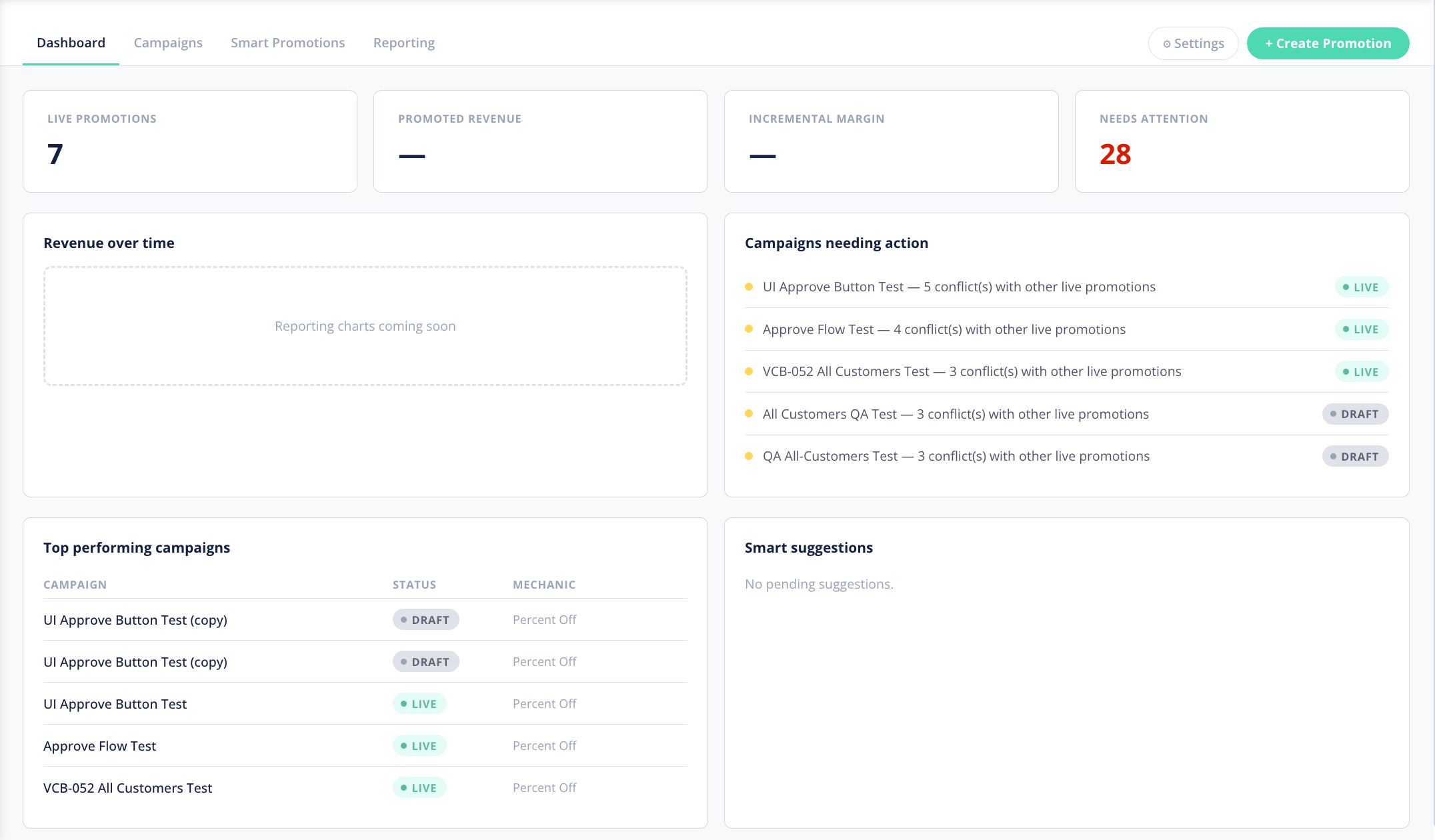
Promotions & Specials lets you put products on special and track how the campaign performs. Find it under Products & Pricing → Promotions & Specials and click Create Promotion.
How do I create a promotion?
- Go to Products & Pricing → Promotions & Specials and click Create Promotion.
- Choose the discount mechanic — for example Percent Off — and set what it applies to.
- Set the promotion live. Campaigns show as Live or Draft, so you can prepare one and publish it when you're ready.
What can I do from the Promotions dashboard?
- Smart Promotions — suggested deals to inspire your next campaign.
- Eligibility — control which customers a promotion applies to.
- Preview — check how the promotion will look before you publish.
- Reporting — track results such as live promotions, promoted revenue and incremental margin, and see any campaigns needing attention.
Tip: Keep an eye on the margin figures in reporting so a discount drives volume without eroding profit more than you intend.