


Back
Connecting Sage Accounting
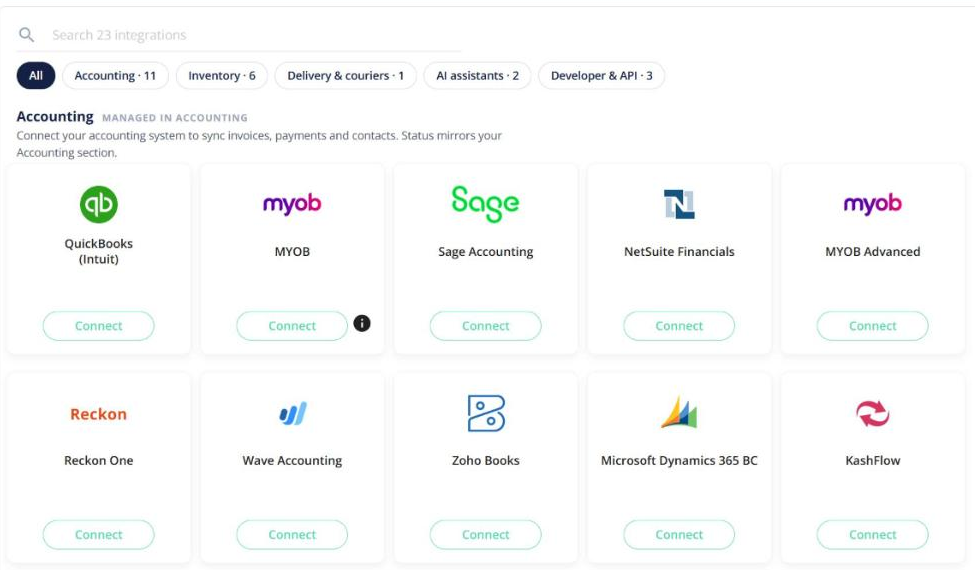
Quick answer: Go to Settings → Integrations, find Sage Accounting and click Connect. Sign in to Sage and approve access. Once connected, finalised orders are sent to Sage as invoices, the same way they go to Xero or MYOB. Accounting integrations need a Pro plan or above.
Connect
- Open Settings → Integrations.
- On the Sage Accounting card, click Connect.
- Sign in to your Sage account and allow Open Pantry access. You’re brought back to Open Pantry and the card shows Connected.
After connecting
Click Manage in Accounting to set up mapping: income accounts, tax codes and how customers and products are matched. Check the mapping before your first invoices go across.
Disconnect
Use Disconnect on the Sage card. Invoices already sent stay in Sage.
Note: credit notes sync automatically only where your accounting provider supports it. If you’re unsure what your Sage connection sends, email info@theopenpantry.com.