


Scanners, the Floor app and scan-only mode
Quick answer: Open Pantry reads GS1 barcodes (carton, carcass, pallet SSCC and bin labels) from a phone camera, a ring scanner or a rugged handheld. Warehouse staff use the full-screen Floor app at Inventory → Floor. If you switch on Scan-only, staff can’t type a quantity for the jobs you choose; a supervisor approves any exception.
Set up and test a scanner
- Go to Inventory → Settings → Scanners.
- Scan a label into the live test, or print the test sheet and scan that.
- Most handheld scanners work as a keyboard: they type the barcode into the screen. No driver is needed.
Bad labels are refused on the spot — a wrong check digit, an impossible date, a missing separator or a missing weight shows red rather than going into stock.
The Floor app
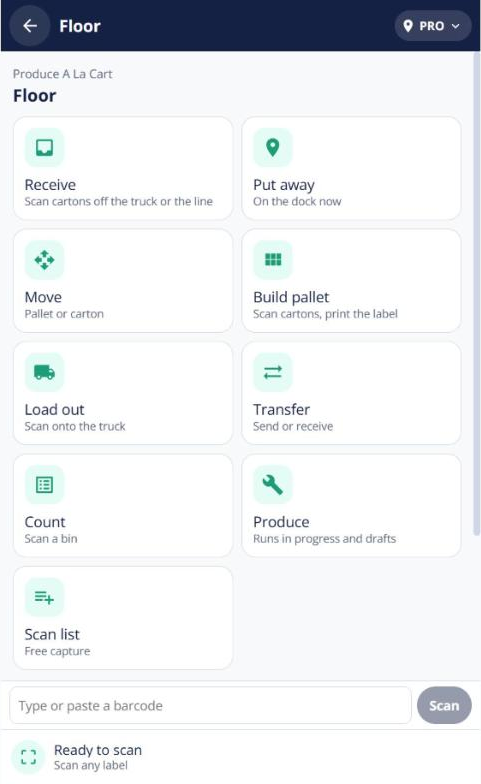
Open Inventory → Floor on the device your team uses on the floor. It shows a scan-anywhere look-up and a tile for each job your switches allow: Receive, Put away / Move, Transfer, Count, Scan list, Build pallet, Load out and Produce. “Today on this device” lists what was done there.
Scan-only and supervisor approval
- Under Settings → Scan-only, tick the jobs that must be scanned (for example receiving, put away, picking).
- Add your supervisors and set your own PIN.
When a label won’t scan, staff tap Can’t scan?. A supervisor approves either by entering their PIN on the same device or from their own device when asked (Ask <name>). Five wrong PINs lock it for 15 minutes, and each approval works once.
Scan activity
Every scan is logged. The scan activity feed filters by job, person and “manual only”, shows overrides and who approved them, and exports to CSV.