


Back
Warehouse features: what each switch turns on
Quick answer: The warehouse tools are switched on one at a time under Inventory → Settings (gear icon) → Warehouse features. Each switch is off until you turn it on, and with a switch off nothing changes anywhere in the app. Most of them need the Enterprise plan; a lock chip shows on any you can’t use yet.
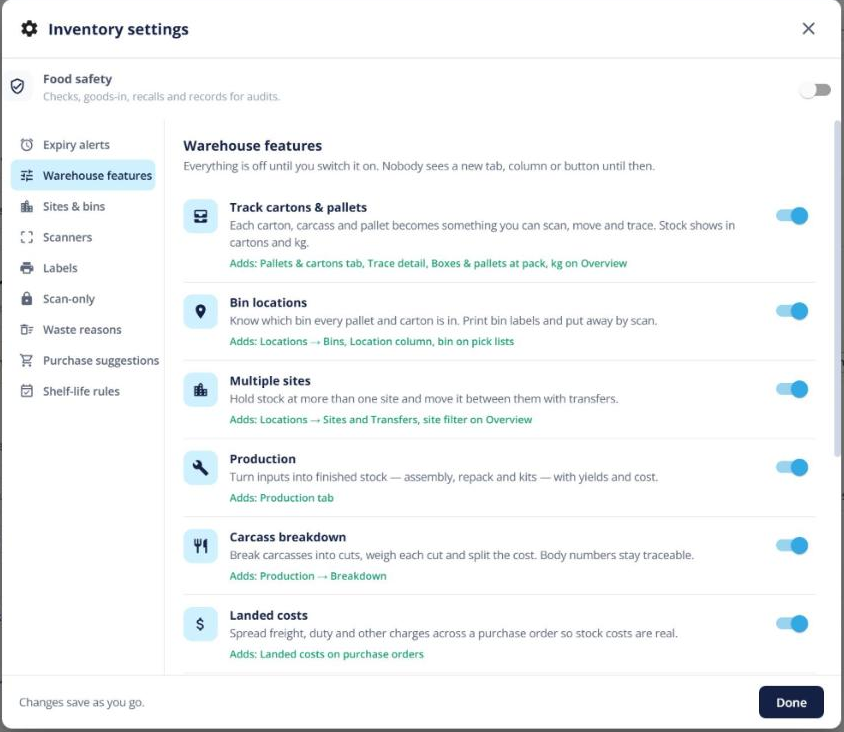
The switches
- Track cartons & pallets — every carton (or carcass) becomes a unit with its own serial, weight, dates, bin and lot. Turns on scan receiving, pallet building, SSCC labels, load out and carton-level trace.
- Bin locations — bins inside a site, bin labels, stock by bin, put away and move by scan, counting by bin, and bin chips and walk order on the picker.
- Multiple sites — more than one warehouse, with stock per site and transfers between them.
- Scan-only — staff must scan instead of typing in the jobs you choose, with a supervisor approving exceptions.
- Hold stock for orders — reserve specific pallets, cartons or lots for an order line.
- Can be filled by groups — let one product be filled by any of several member products.
- Production and Landed costs — assembly and repack runs, kits, and freight or duty spread onto stock cost.
- Carcass breakdown — break carcasses into cuts with yields and cost splits (turns Production on).
The same Settings screen also holds Scanners (test your scanner), Labels (your GS1 company prefix), Scan-only (contexts and supervisors), Sites & bins and Advanced stock control.
Tip: Start with one switch, try it for a week, then add the next. Each article in this section explains one of them.