


Your supplier dashboard — the command centre
Quick answer: Your supplier dashboard is the command centre: operational pulse cards, the Ask Open Pantry assistant and a financial snapshot for the day you choose.
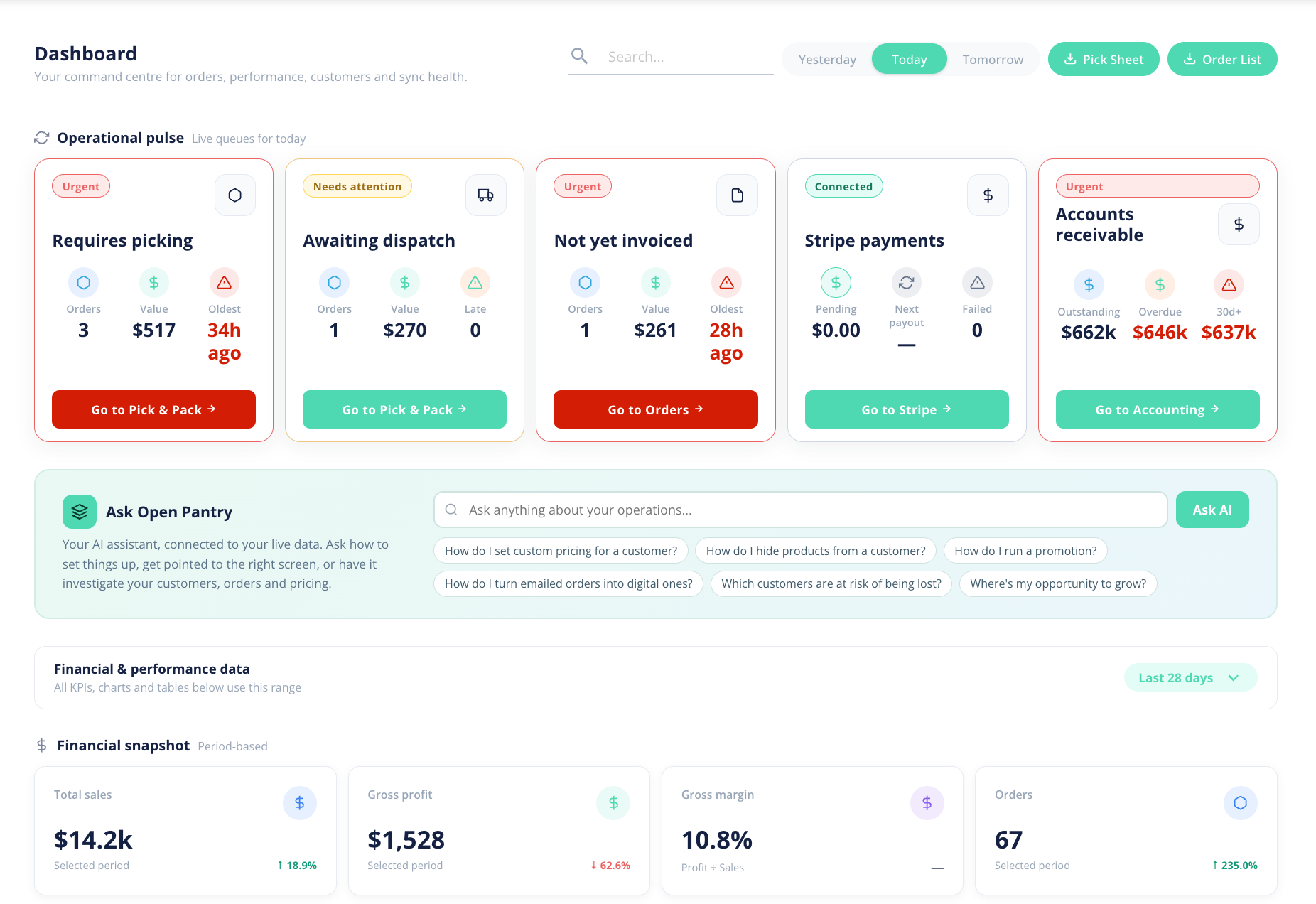
Your dashboard is the first screen you land on when you log in. It's your command centre for orders, performance, customers and accounting sync health — everything you need to run your day from one place.
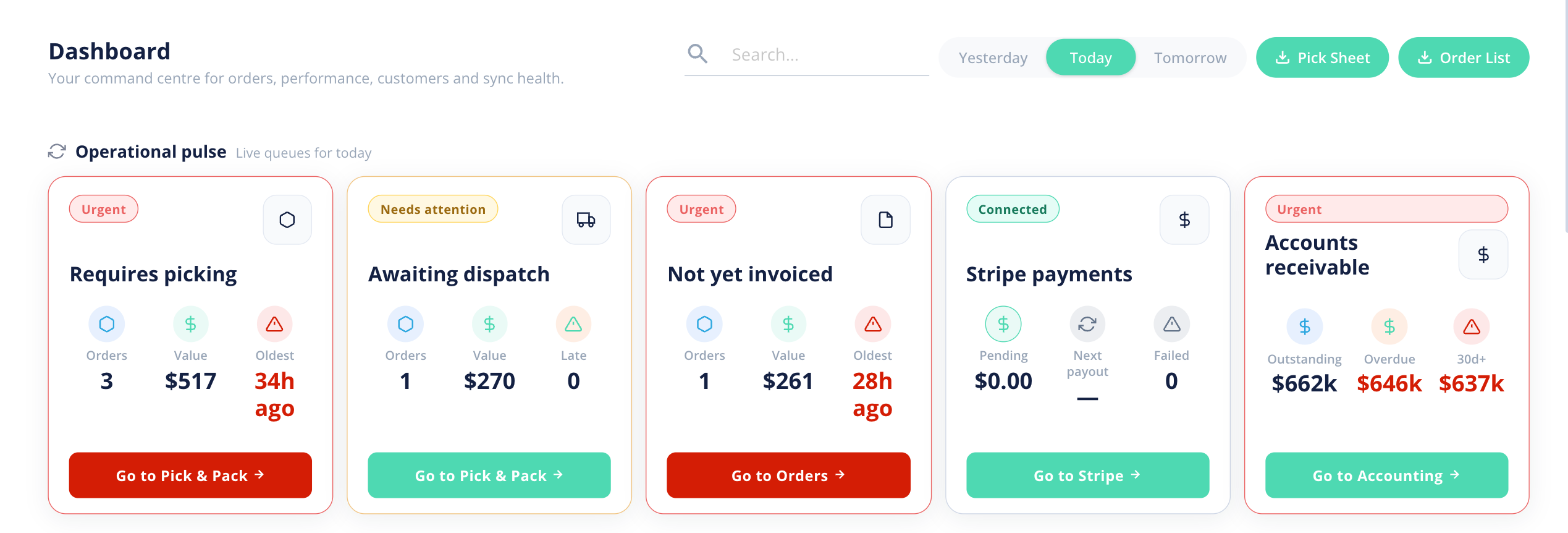
How do the day filter and quick buttons work?
At the top you can switch the view between Yesterday, Today and Tomorrow, so you can plan ahead or look back. Two quick buttons sit alongside it:
- Pick Sheet — jumps you to the picking sheet so your warehouse can start picking the day's orders.
- Order List — opens your full list of orders.
What does the Operational pulse show?
The Operational pulse row shows live cards for the parts of your operation that need attention. Each card carries a status chip — for example Urgent, Up to date or Connected — and a "Go to..." button that takes you straight to the right screen. The cards are:
- Requires picking — orders waiting to be picked.
- Awaiting dispatch — orders picked and packed, ready to go out.
- Not yet invoiced — orders that still need to be invoiced or sent to your accounting system.
- Stripe payments — the state of card payments through Stripe.
- Accounts receivable — money owed to you by customers.
Tip: A red "Urgent" chip is your cue to act — click the card's "Go to..." button to handle it. When everything's under control the chips read "Up to date".
What is Ask Open Pantry?
This box is your built-in AI assistant, connected to your live data. Type a question into the field, or click one of the suggested prompts (for example "How do I set custom pricing for a customer?" or "Which customers are at risk of being lost?"). It's covered in full in the next article.
What financial and performance data is shown?
Lower down, the Financial & performance section gives you a snapshot of how the business is tracking. Choose a date range (for example, the Last 28 days) and the Financial snapshot updates to show:
- Total sales
- Gross profit
- Gross margin
- Orders
For deeper analysis — trends over time, top customers, top products and at-risk signals — head to the Reporting suite (covered later in this guide).
What is the setup checklist?
Brand-new accounts also see a "Get your store set up" checklist on the dashboard, with four steps:
- Add products & pricing
- Add or invite customers
- Connect your accounting
- Receive your first order
A sample-data banner lets you explore the dashboard with demo customers and orders before your own data is in. The checklist disappears automatically once you've completed every step.